AI assistants
Connect an AI assistant, such as Claude or ChatGPT, to Firmdesk, and ask it in plain words: "draft the T1 request for the Martins with our usual list, due March 15", "what's overdue for my clients this week?", "give Sam a task to call Acme about their T2". It works in Firmdesk for you, with what you can do there. Anything that reaches a client, or deletes something, waits for your approval, unless your firm lets that kind of sending run at once.
Turn assistants on for your firm
Assistants are off until an owner or admin turns them on. Go to Settings › Connected apps and click Turn on. Your team can then connect their own; nobody can connect one for someone else.
Click Turn off at any time: connected assistants stop working at once, and work again when you turn them back on.
Connect your assistant
- Go to Settings › Connected apps and copy the address under Connect an assistant.
- In your assistant, add a custom connector with that address:
- Claude: Settings › Connectors › Add custom connector.
- ChatGPT: Settings › Connectors, with developer mode on, then create a connector.
- Your assistant opens Firmdesk's sign-in. Sign in as usual, with your second step if you use one.
- Firmdesk asks what the assistant can do. If you're on more than one firm's team, choose the firm it starts in. Untick what it shouldn't do, and click Allow.
If assistants are off in that firm and you're its owner or admin, Allow turns them on for its team. Otherwise, ask an owner or admin to turn them on first.
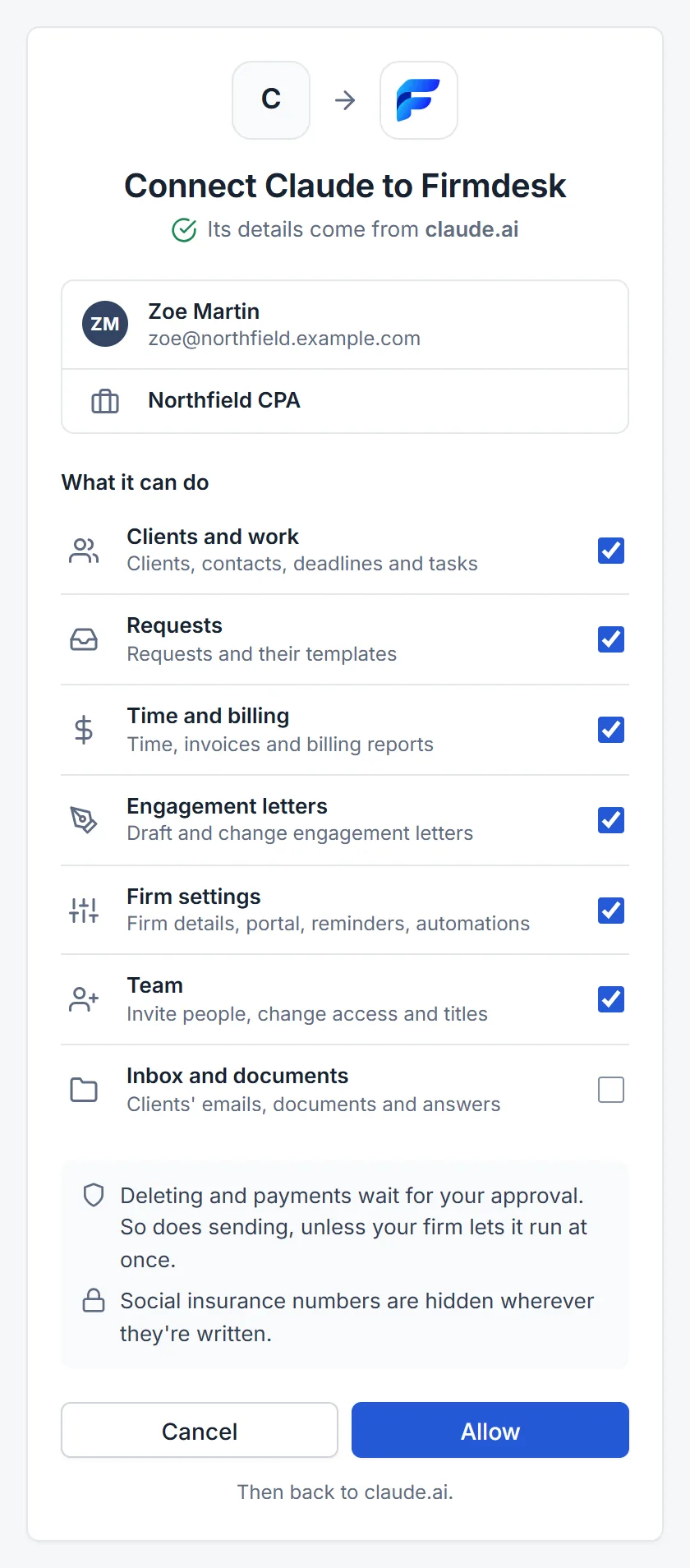
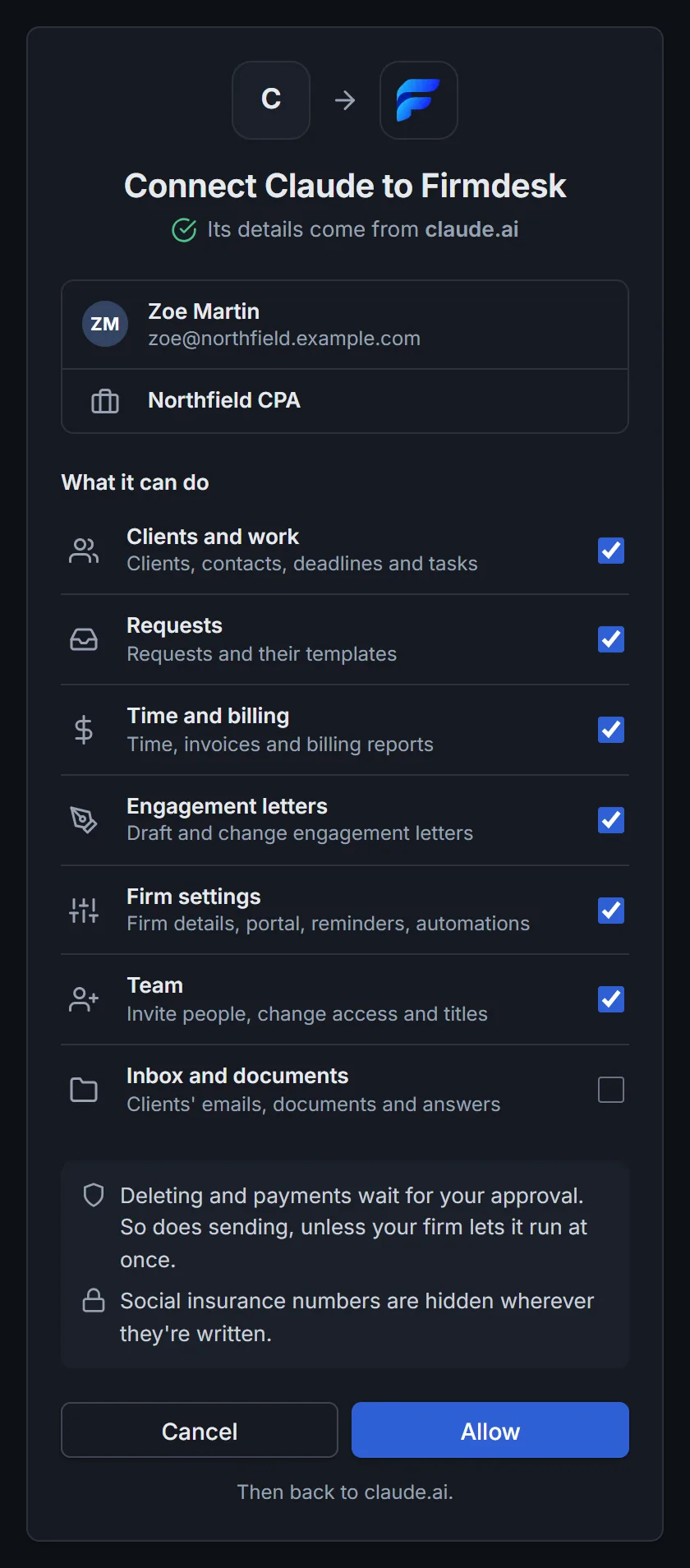
Under the assistant's name, Its details come from claude.ai (or chatgpt.com) means Firmdesk read who it is from that site itself.
Back in your assistant, it's connected. Ask it something, such as "who am I in Firmdesk?", to check.
Switch firms in the chat
If you're on more than one firm's team, ask your assistant to switch, such as "switch to MTCK". It works in one firm at a time, with what you ticked and your own access in that firm. It can switch to your firms where assistants are on.
Each firm lists the assistant on its Connected apps page once it has worked there, and that firm's owners and admins can disconnect it. What it asked you to approve in one firm stays in that firm's Approvals.
What it can do
What you tick when you connect decides it. You can connect again to change it, or to add Firm settings, Team or Inbox and documents to an assistant you connected before they were offered. Inbox and documents is never ticked unless you tick it: it lets the assistant read what your clients wrote.
- Clients and work: find clients and see their team, contacts, services, open deadlines, tasks and requests; add a client, change one, add a contact or a note; add a service, with its checklist (Firmdesk's starter, such as the bookkeeping month-end close, or another client's), and add or change a step of a service's checklist (its tasks follow, as in Firmdesk; deleting a step waits for your approval); add, change and complete tasks, and give them to someone. It also sees a client's reminders, and turns them on, changes them or turns them off with your approval, since Firmdesk then emails the client by itself.
- Requests: see your requests and request templates, and the tasks each is for; draft a request for one client (for one of its tasks if you like), or the same request for many clients at once (partners, managers, owners and admins), and change a draft; link a request to a task, or unlink it; make and change request templates (deleting one waits for your approval). A task it lists says where its requests stand: what's left for the client, and how many answers wait for your review. Accepting an answer stays with you, on the task or the request, since the assistant never sees what the client sent.
- Time and billing: log your time, and submit your timesheet for a week. Partners, managers, owners and admins can also see invoices, unbilled time, a client's statement and the billing reports (revenue, aging, sales tax), and draft and change invoices: from unbilled time or lines, each with its own date and sales tax, with a discount and the client's reference (purchase order); set a client's own payment terms and reference; see the budgets report and set a deadline's budget; see the recurring invoices, and set one up, change it, stop it or start it again; and see the timesheets waiting, and approve or return one. Owners and admins can also see and change the invoice settings: the name on invoices, payment terms, the next number, the footer and the messages in invoice emails. Your GST/HST and QST numbers stay in Firmdesk.
- Engagement letters (partners, managers, owners and admins, on the Advanced plan): see your letters and templates; draft a letter from a template, with its fees and agreed terms, change a draft, or duplicate last year's. Owners and admins can also read a template in full and make one; changing or deleting one waits for approval. The services a template sets up are chosen in Firmdesk.
- Firm settings (owners and admins): see and change the firm's name, province, time zone, addresses and contact info; the client portal's settings (what clients see, who shares documents, the emails and where replies go, the clients' language, the colour); what each kind of reminder says; and the automations: add one, change it, turn it on or off, or delete it. Every change waits for your approval, since clients see these, and reminders and automations act by themselves. Emailing clients a code at sign-in stays in Firmdesk.
- Team (owners and admins): see everyone on the team, with their access, title, and whether they're active or still invited; invite someone, change a person's access, title, name, phone or initials, make them inactive or active again, and email an invite again. Every change waits for your approval, since an invite lets someone into your firm. The link to choose a password is only ever in the email. Removing someone, and their rates and hours, stay in Firmdesk.
- Inbox and documents: read the Inbox's emails, a client's documents and their text (PDFs, Word documents and text files), and clients' answers to requests; file an email under a client, add a follow-up task, save an email's file to the client's documents, move a document, and accept answers. Sharing a document or making it firm only, deleting one, and sending an answer back wait for your approval. It doesn't reply to emails: the Inbox isn't a mailbox.
It acts as you: it sees what you see, and can't do what you can't. In the activity log, what it changes shows under your name, "via" the assistant.
It never gets the banking details kept in Firmdesk, and social insurance numbers are hidden wherever they're written: a T4 in a client's document or a SIN in an email reaches it as "a social insurance number, hidden by Firmdesk". It reads what your clients wrote (their emails, documents and answers) only if you ticked Inbox and documents, and a bank account number in one of their documents, such as a void cheque, reaches it as written. You add a business number in Firmdesk.
Approve what it asks
When you ask your assistant to send a request, an invoice or a letter, remind a client, record a payment or a refund, apply credit, issue a credit note, void an invoice, withdraw a letter, change the firm's settings, a client's reminders or an automation, invite someone or change someone on the team, set up, change, stop or start a recurring invoice, approve or return a timesheet, share a document or make it firm only, send an answer back, or delete a task, a request, a draft letter, a checklist step, a document or a client, nothing happens yet. You approve it, in the chat or in Firmdesk.
In the chat. An assistant that can ask you itself, such as Claude Code, shows you what it's about to do and asks you to accept. Accept does it at once; Decline drops it. If you close the question instead, it waits in Firmdesk, as below. Claude and ChatGPT on the web can't ask you yet.
In Firmdesk. Otherwise your assistant gives you a link, and what it asked waits under Approvals, in the sidebar, with a count.
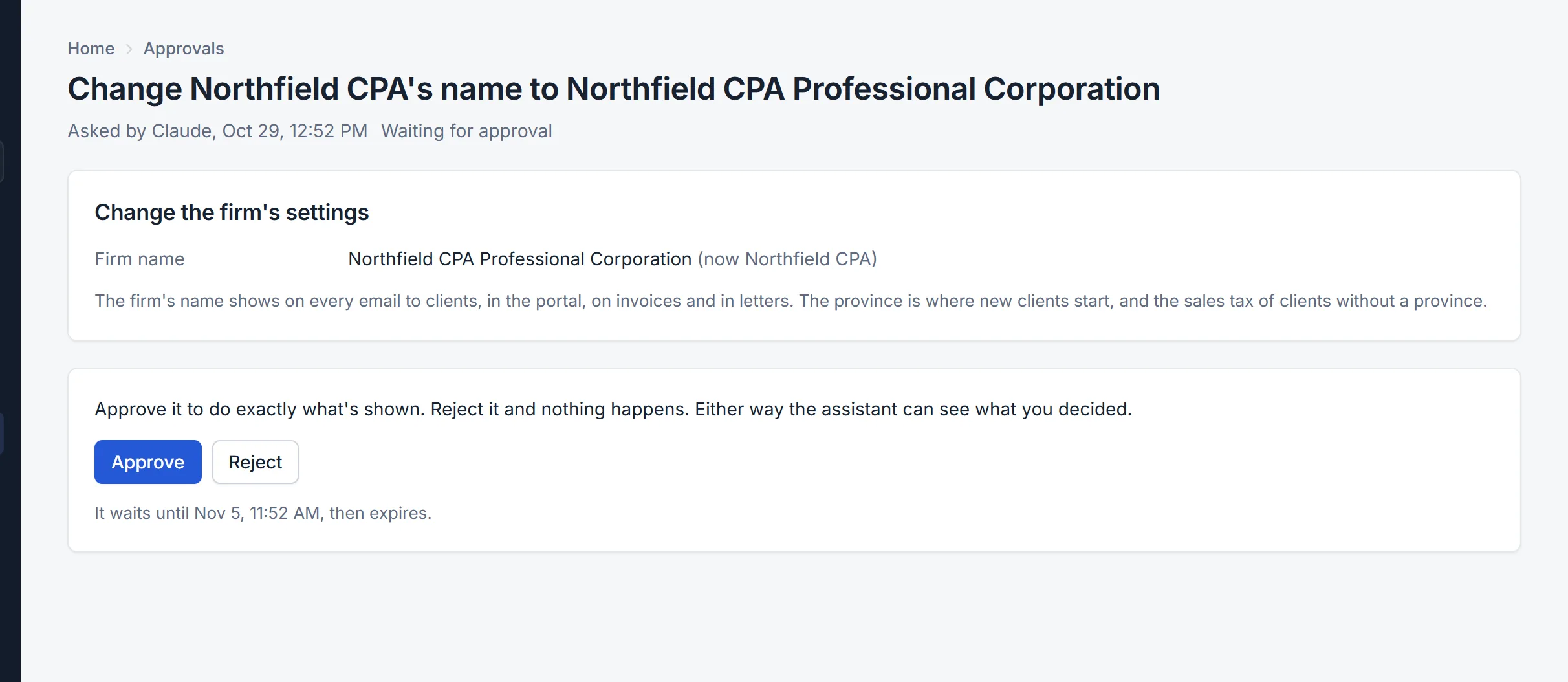
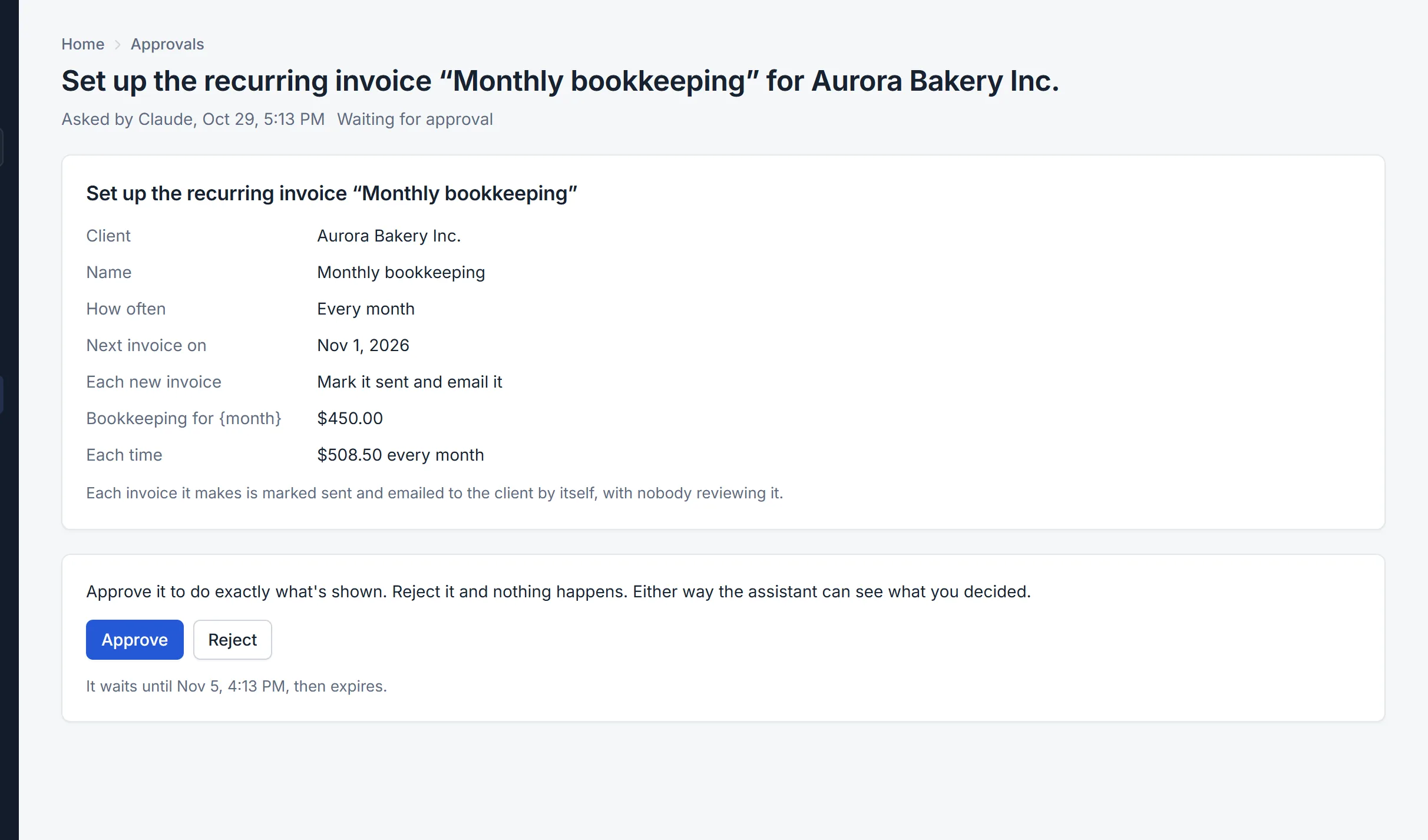
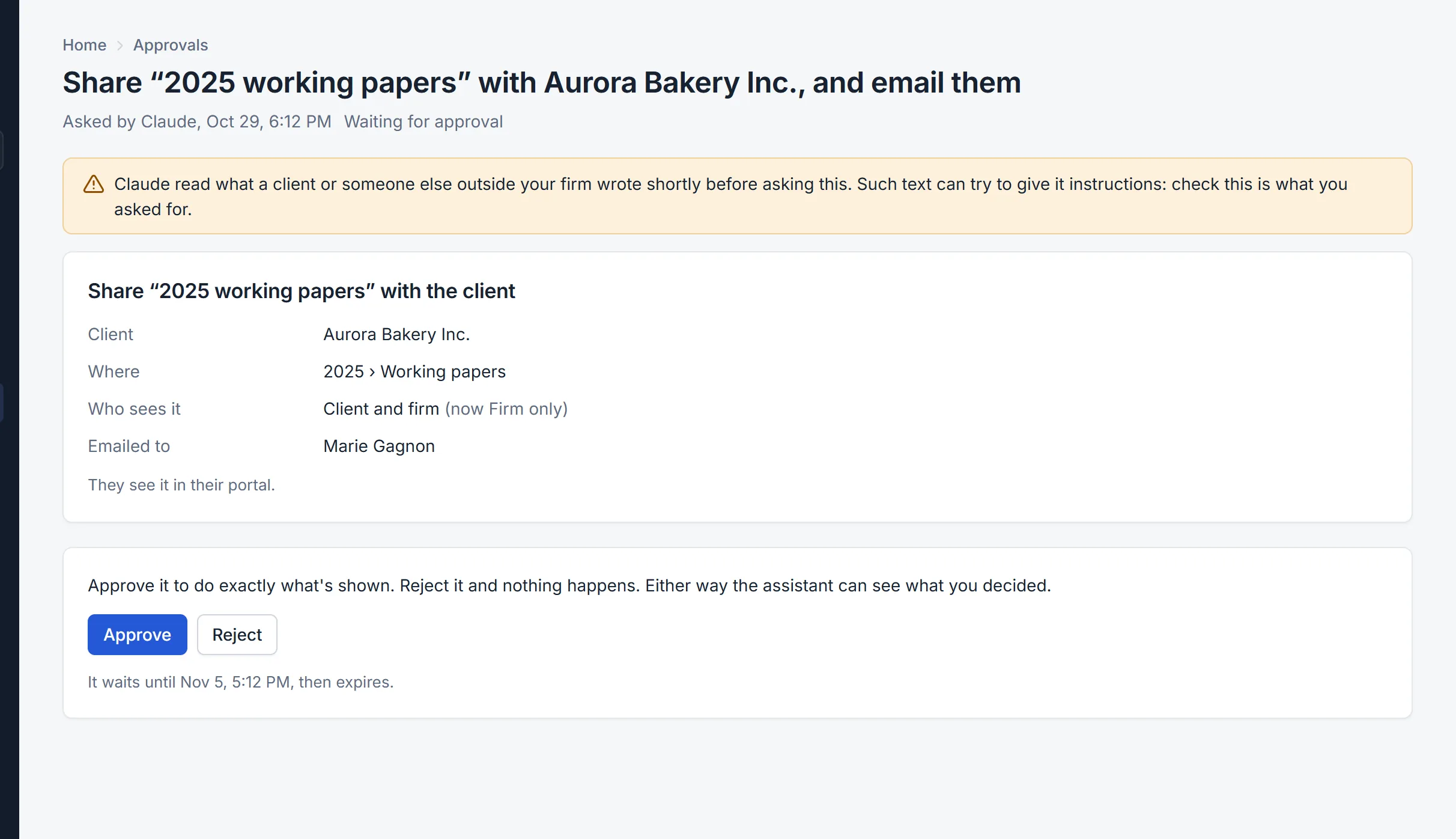
- Open the link, or Approvals. The page shows exactly what will happen: the request, invoice or letter as the client gets it, who is emailed, what signing a letter will set up, the payment or credit note, what a deletion removes.
- Click Approve to do it, or Reject to do nothing. Your assistant can see which you chose.
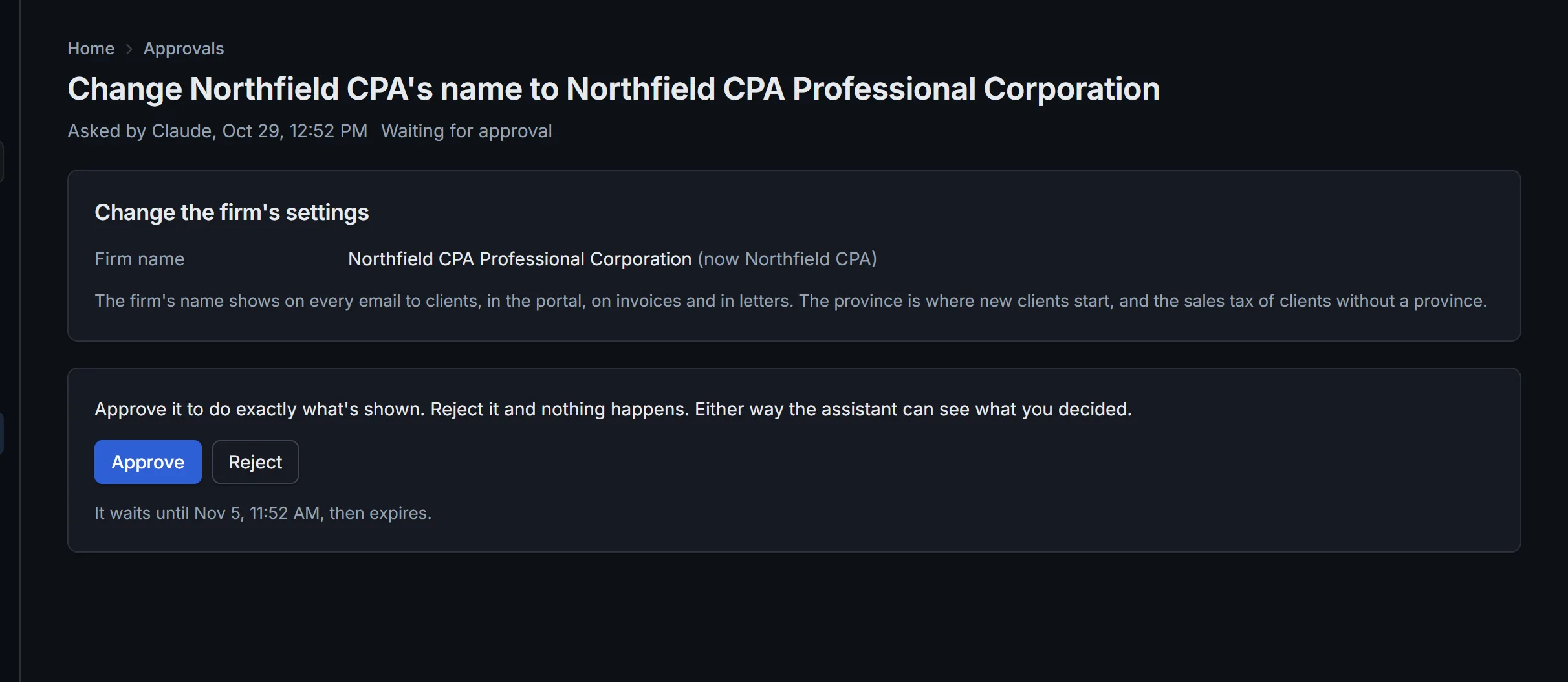
A change to the firm's settings or to a template shows each detail as it will be, with what it is now beside it:
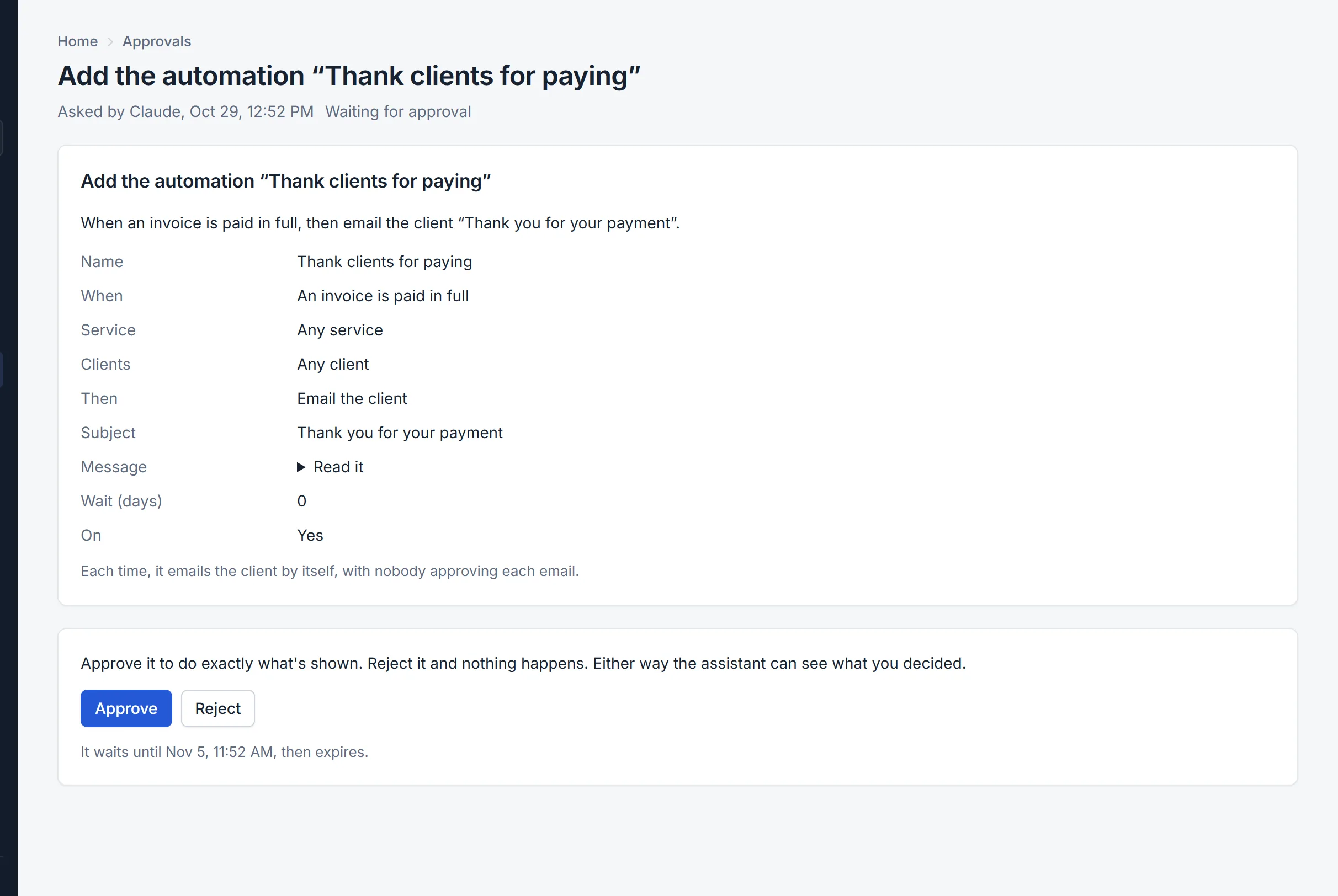
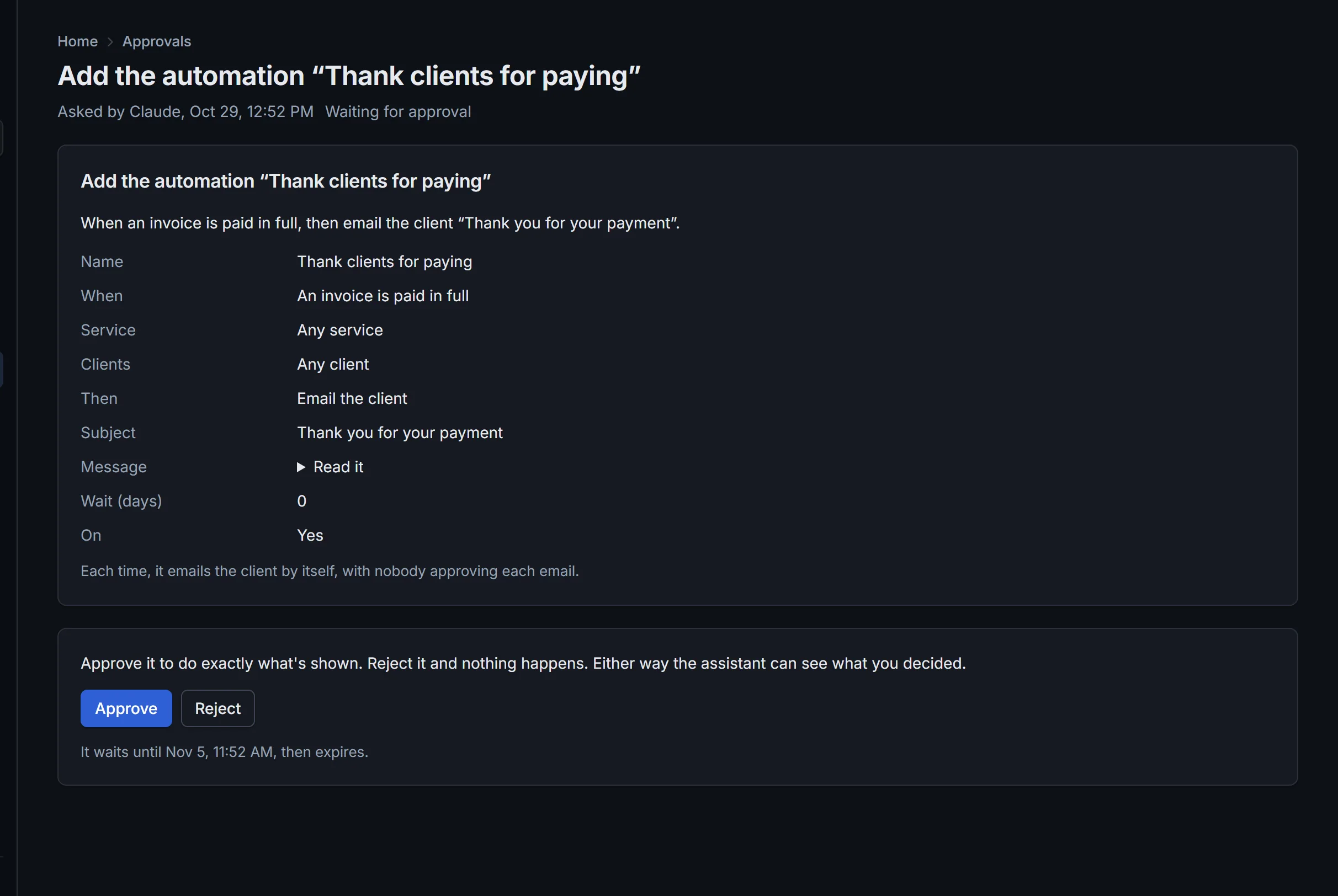
An automation shows as the sentence it will be, and says when it emails clients by itself:
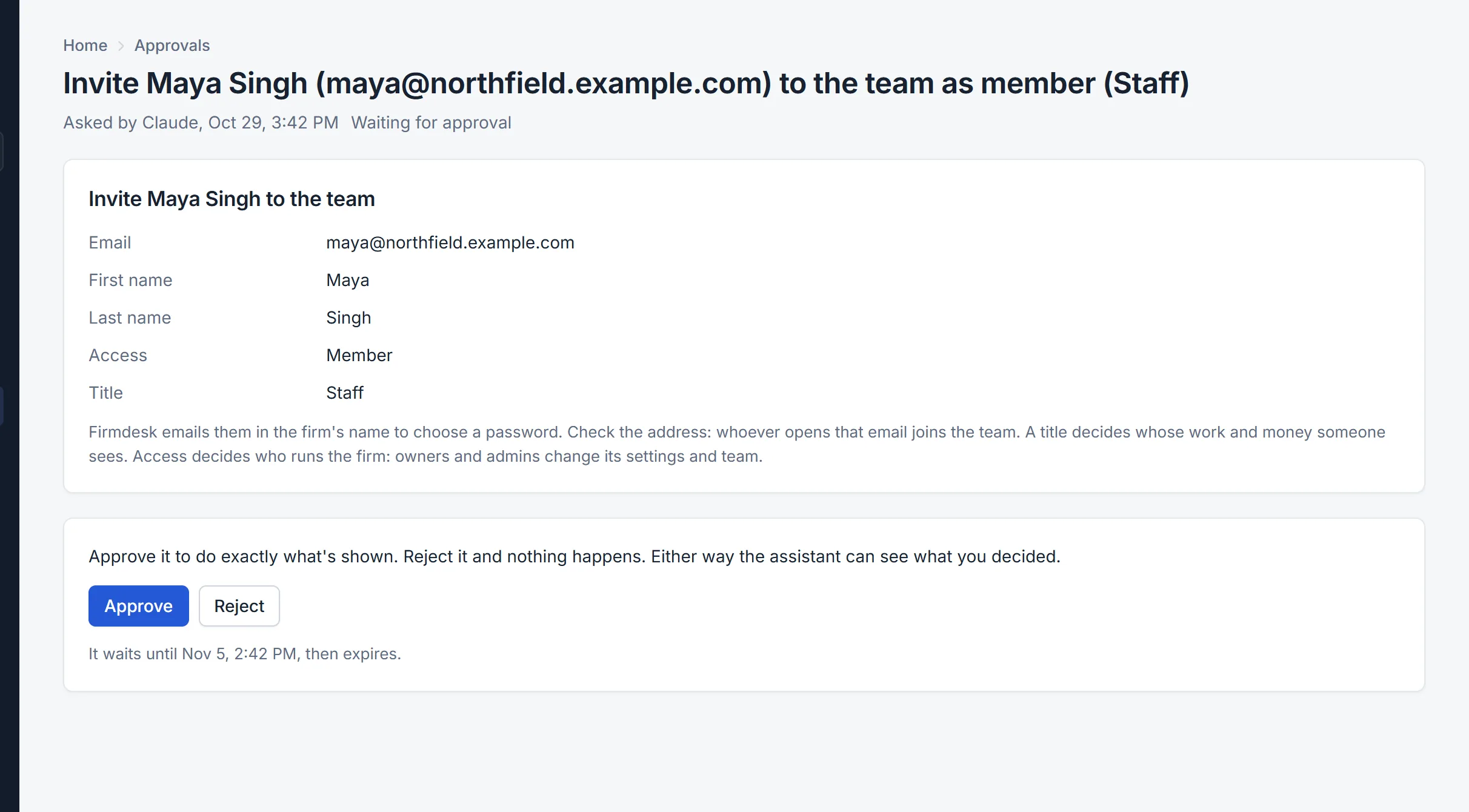
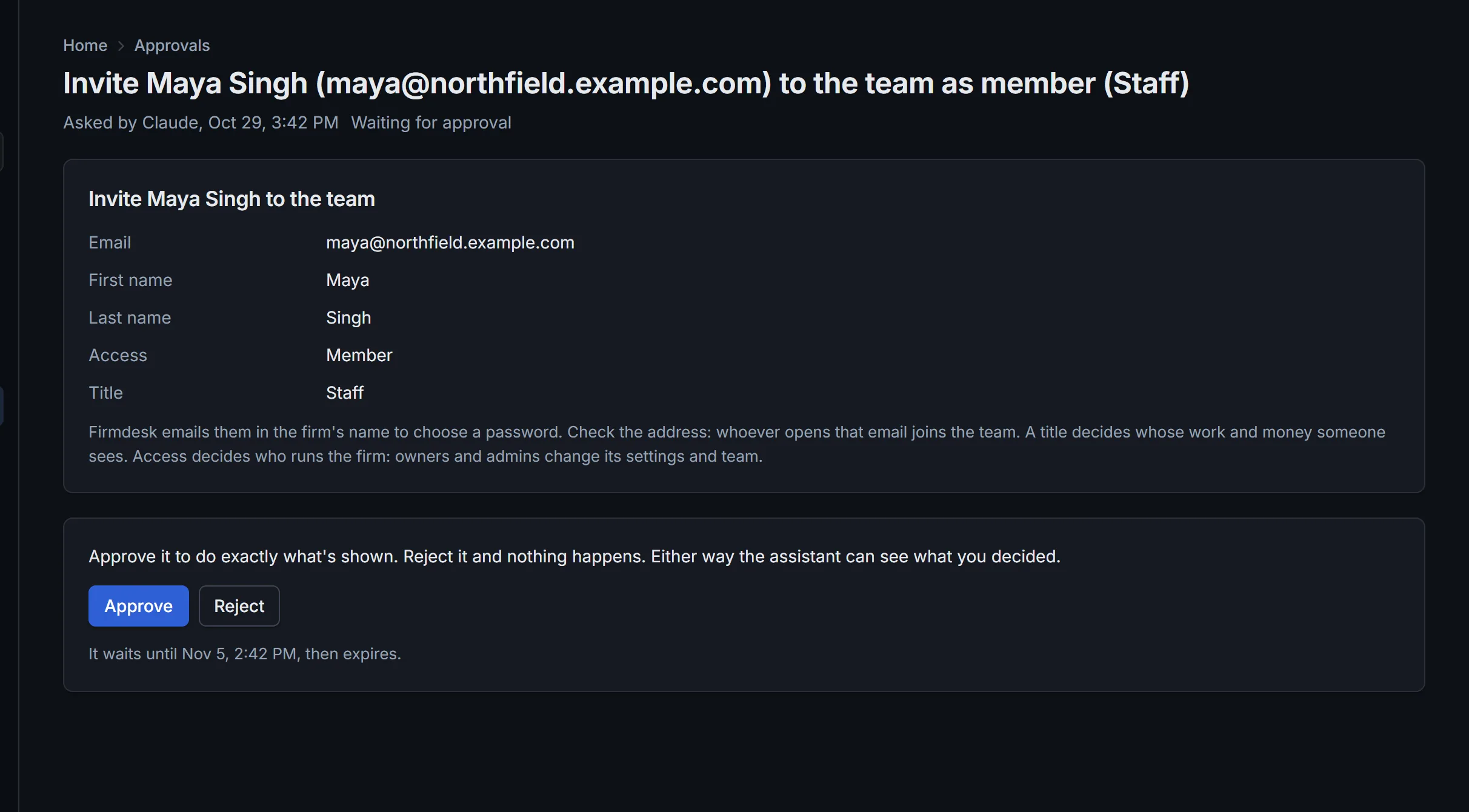
An invite shows who joins and with what access, and asks you to check the address:
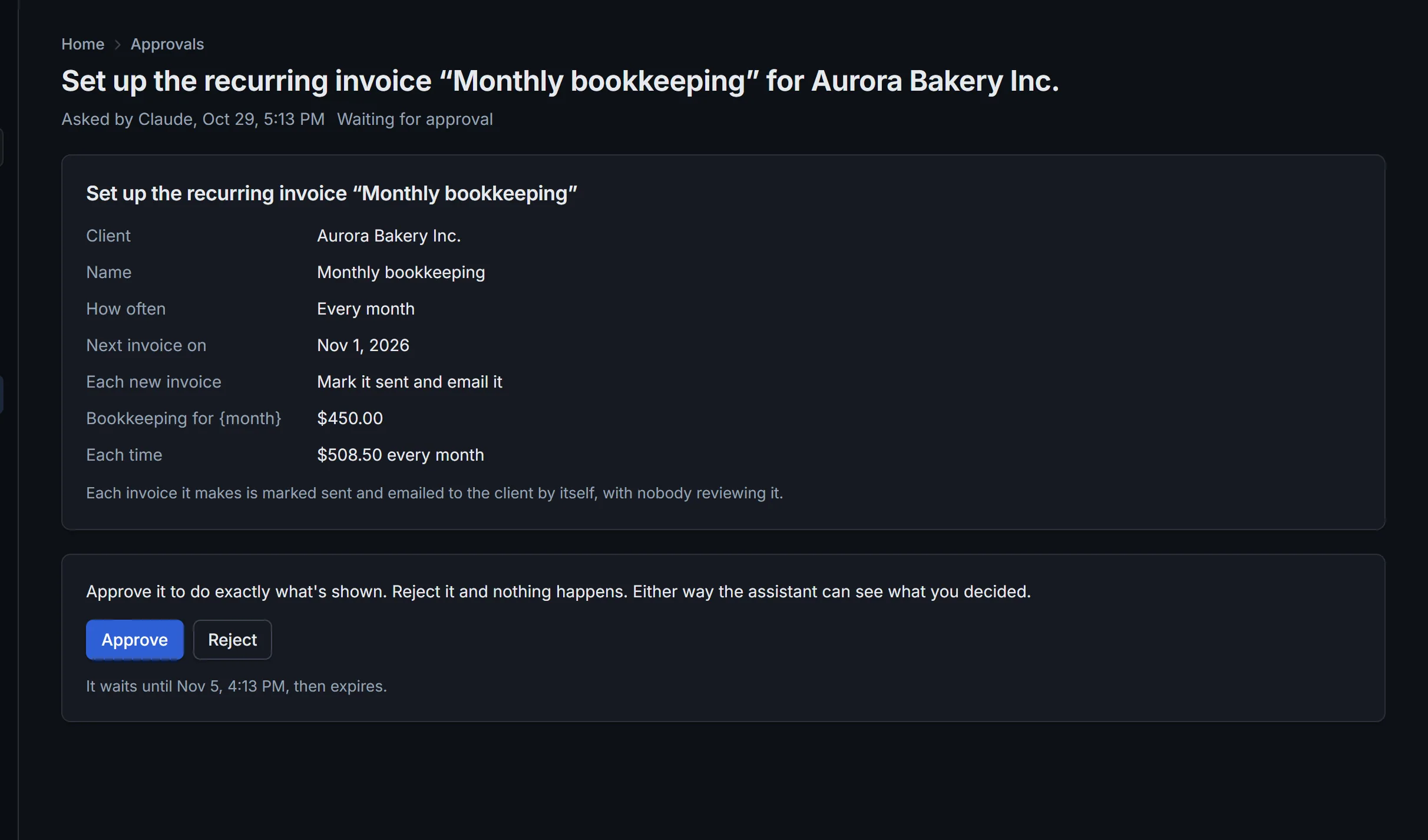
A recurring invoice shows its fees and total each time, and says what happens to each invoice it makes:
Many requests asked at once wait on one page: untick any you don't want to send, then click Send ticked.
- Only you can approve what your assistant asked for. Nobody else at your firm sees it.
- A request or an invoice that was changed after your assistant asked to send it isn't sent. Check it, then send it from its page.
- What isn't approved within 7 days expires, and nothing happens.
- If something still waits 10 minutes after your assistant asked, you get an email about it, in the daytime. Turn it off in Settings › Your account, under Emails: Email me what my assistant asks.
An assistant can be led astray by something it reads, such as an email. That's why it never approves anything itself: the question in the chat is shown to you by the app you use, not written by the assistant, and only your answer counts.
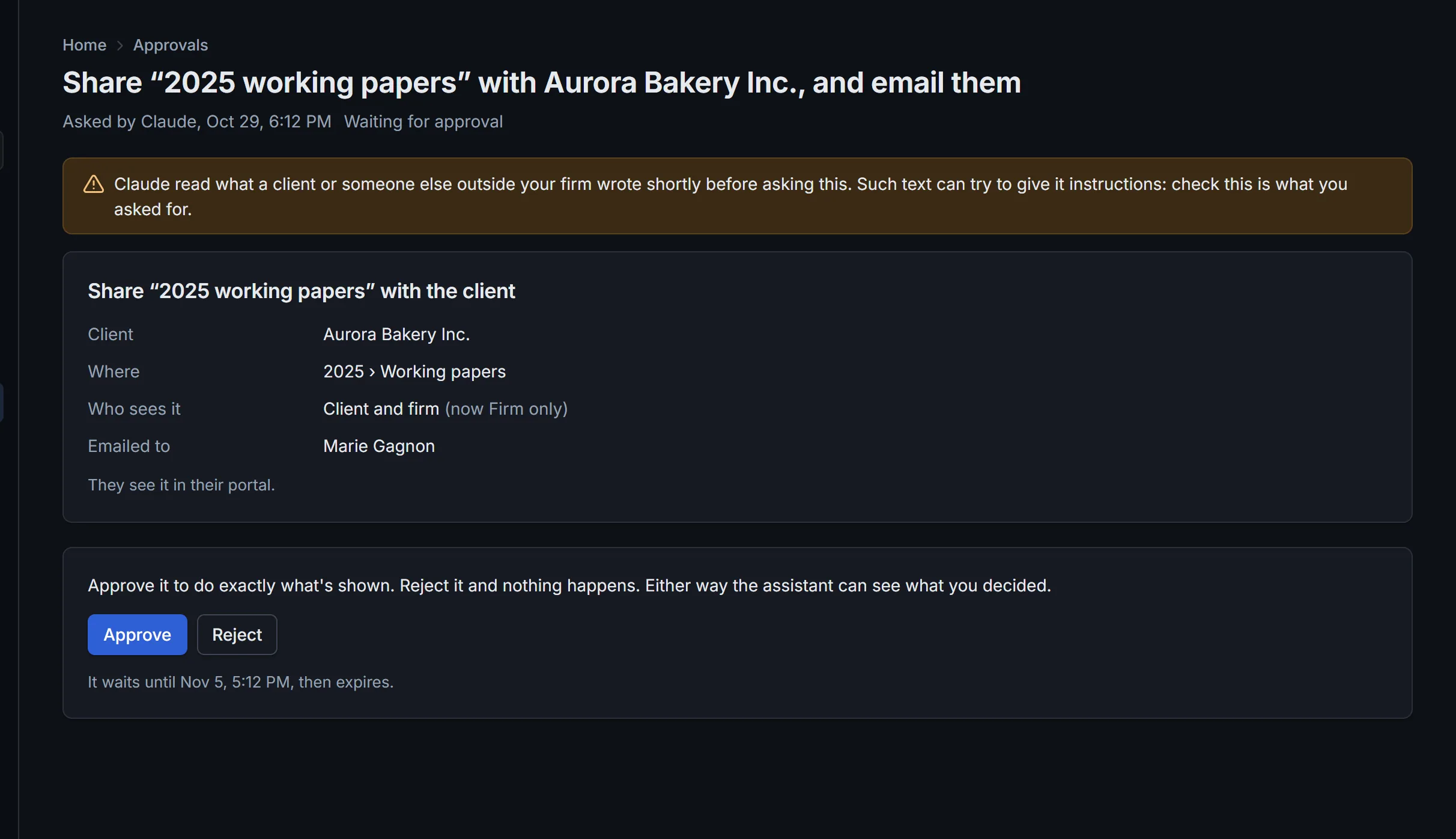
When it read what a client or someone else outside your firm wrote (an email, a document, an answer) shortly before asking, the approval says so, in Firmdesk and in the chat. Check that it's what you asked for: such text can try to give it instructions. What it asks then never runs at once, even a kind your firm lets run without approval.
Let some things run at once
An owner can let assistants do some kinds of sending as soon as they're asked, without anyone approving them: go to Settings › Connected apps, tick them under Without approval, and click Save.
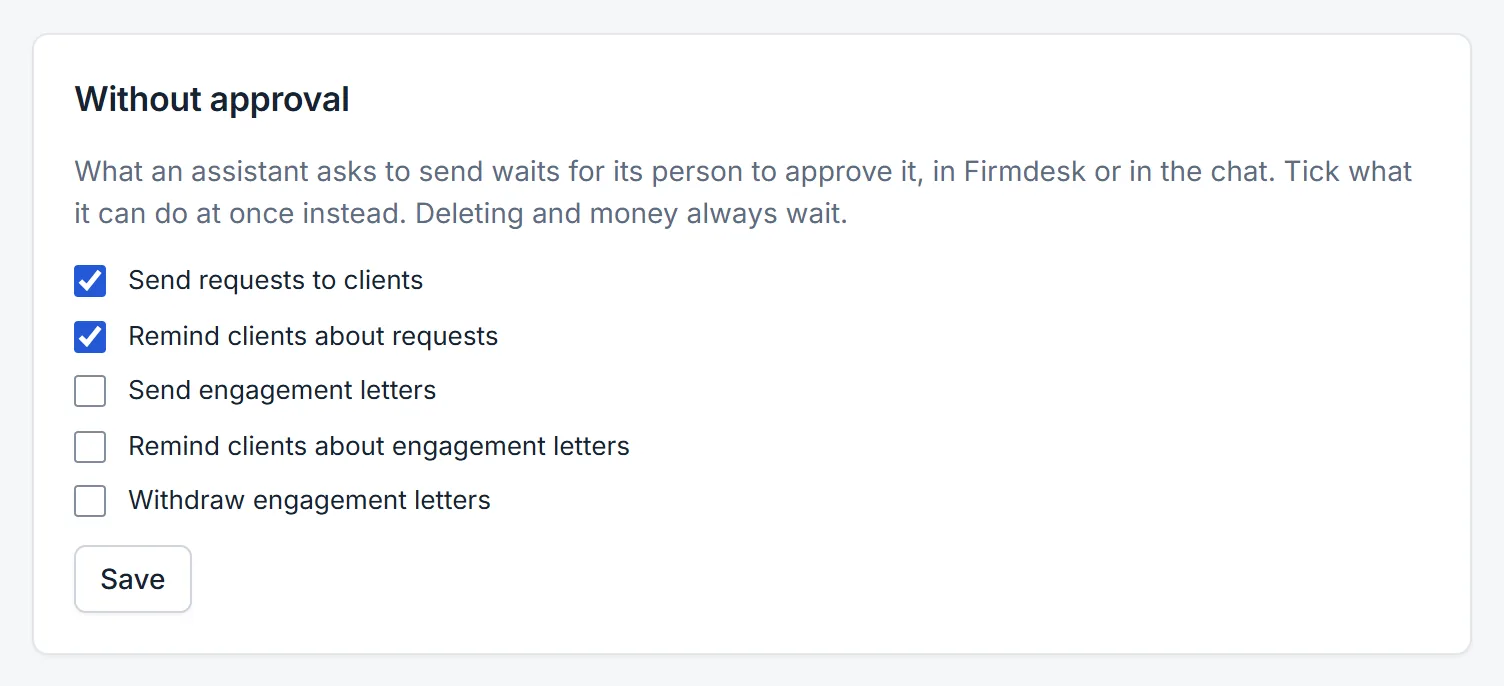
- You can let sending requests, reminding about requests, and sending, reminding about and withdrawing engagement letters run at once.
- Deleting, money and the team always wait for approval: payments, credit, credit notes, refunds, voiding, sending invoices, and inviting or changing someone on the team.
- What the assistant asks soon after reading what a client wrote waits for approval, whatever is ticked here.
- What ran at once still shows under Approvals, marked At once, as the firm allows, and in the activity log.
- Everyone on the team sees what the firm lets run at once, on the same page. Only owners change it.
Disconnect it
Go to Settings › Connected apps and click Disconnect beside it. It stops working at once, and what it asked for and still waits is rejected. Owners and admins can disconnect anyone's.
When someone leaves your team, or is made inactive, their assistant stops working too.