Clients and contacts
A client is a business or a person your firm works for. A contact is a person at a client: an owner, a director, a bookkeeper. Each client has a page that holds everything about it: its services and deadlines, its tasks, documents, time and invoices, and its people.
Find a client
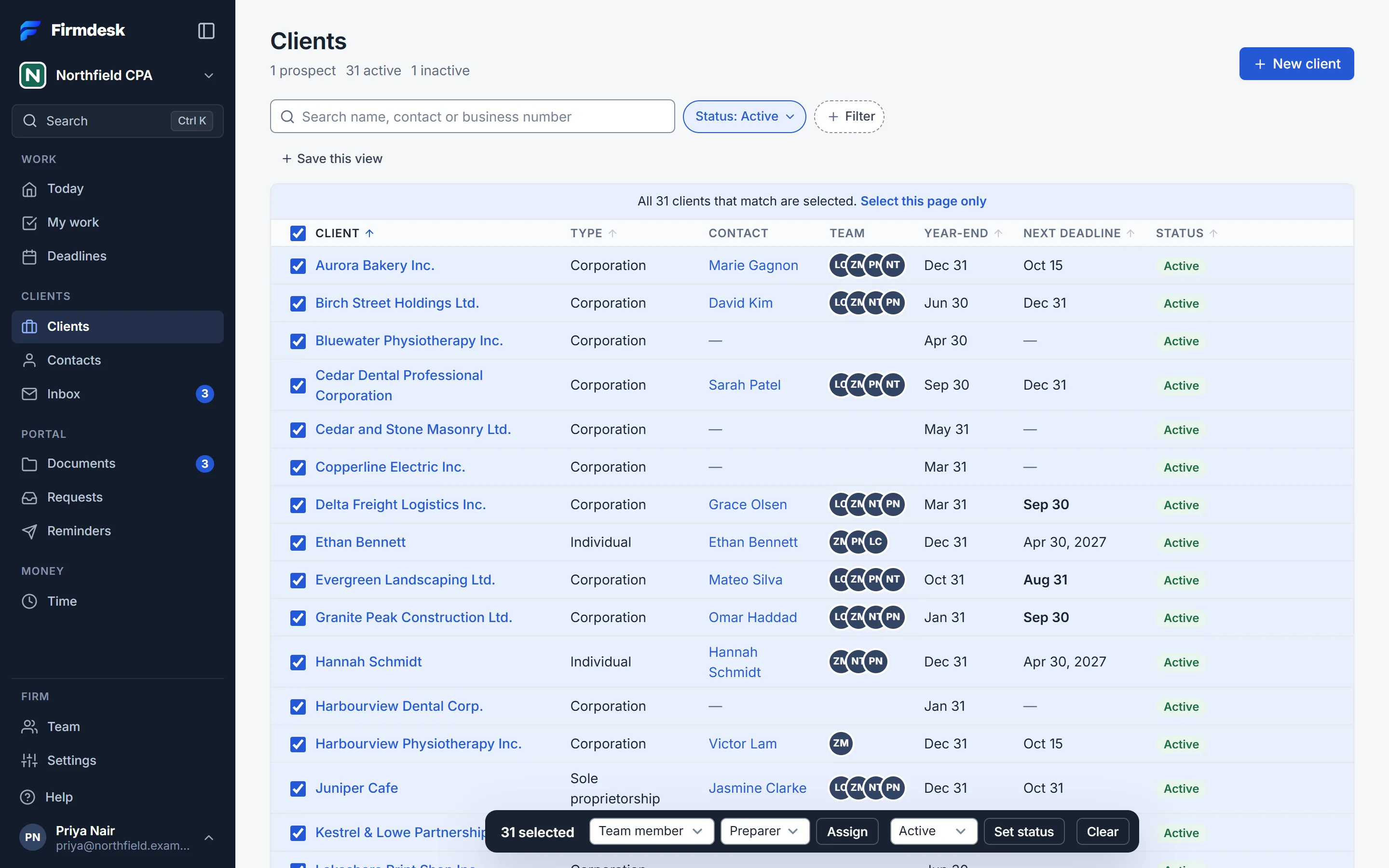
In the sidebar, click Clients. Under the title, the page counts your clients by status.
- Type in Search name, contact or business number. The contact is each client's primary contact.
- Click a column's name to sort by it: Client, Type, Year-end, Next deadline or Status. Next deadline is the client's next open one, payroll aside.
- Click a client's name to open its page. The icons at the end of its row are Log time, New task and Edit client.
- With more than 25 clients, Rows, under the list, shows 25, 50 or 100 a page.
Click Filter to add one:
- Client type: Businesses or Individuals.
- Type: one type of client, such as Corporation or Trust.
- Status: Prospect, Active or Inactive.
- Service: the clients who have that service.
- Team: My clients (the clients whose team you're on), Nobody assigned, or a team member.
- Year-end: a month.
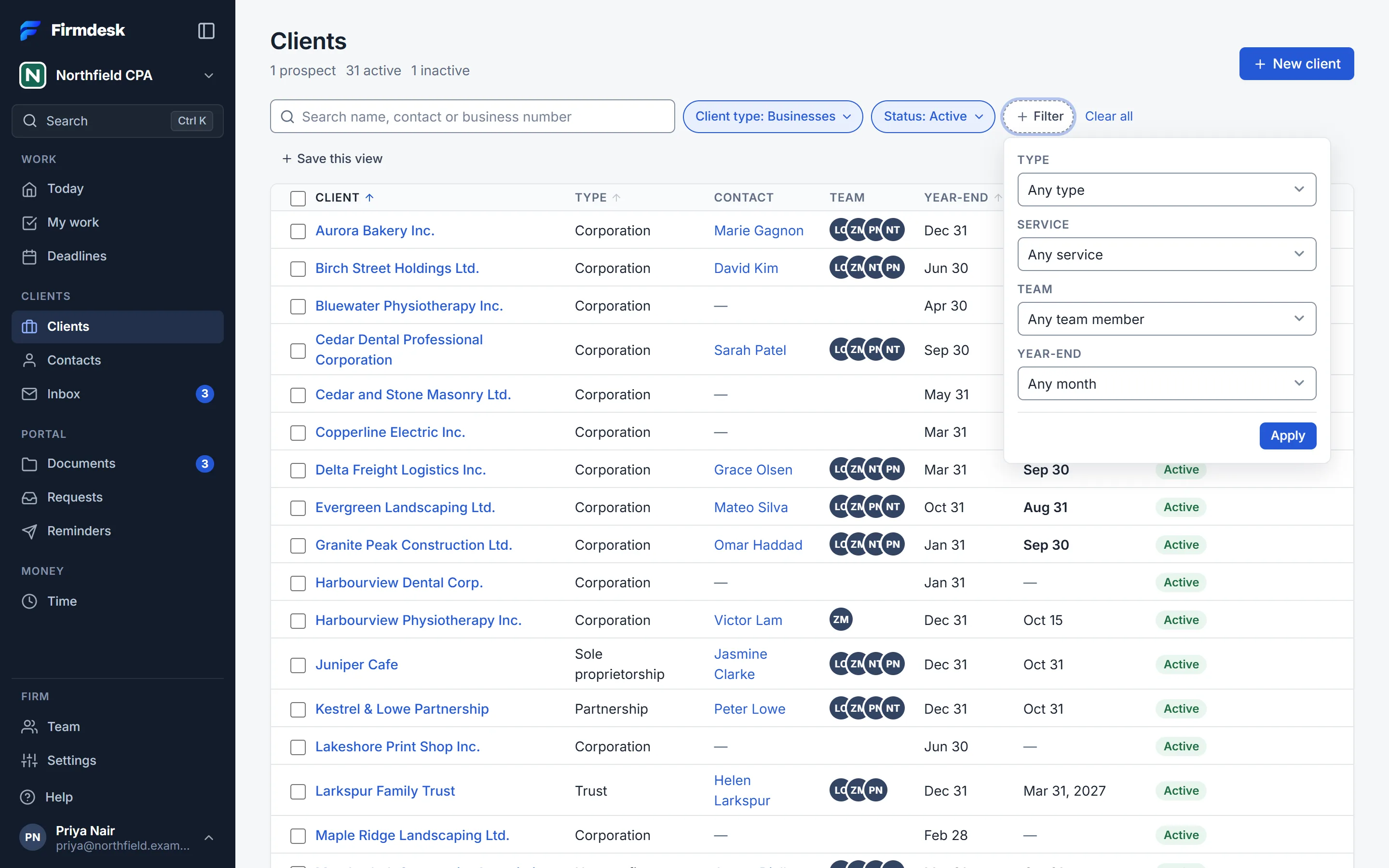
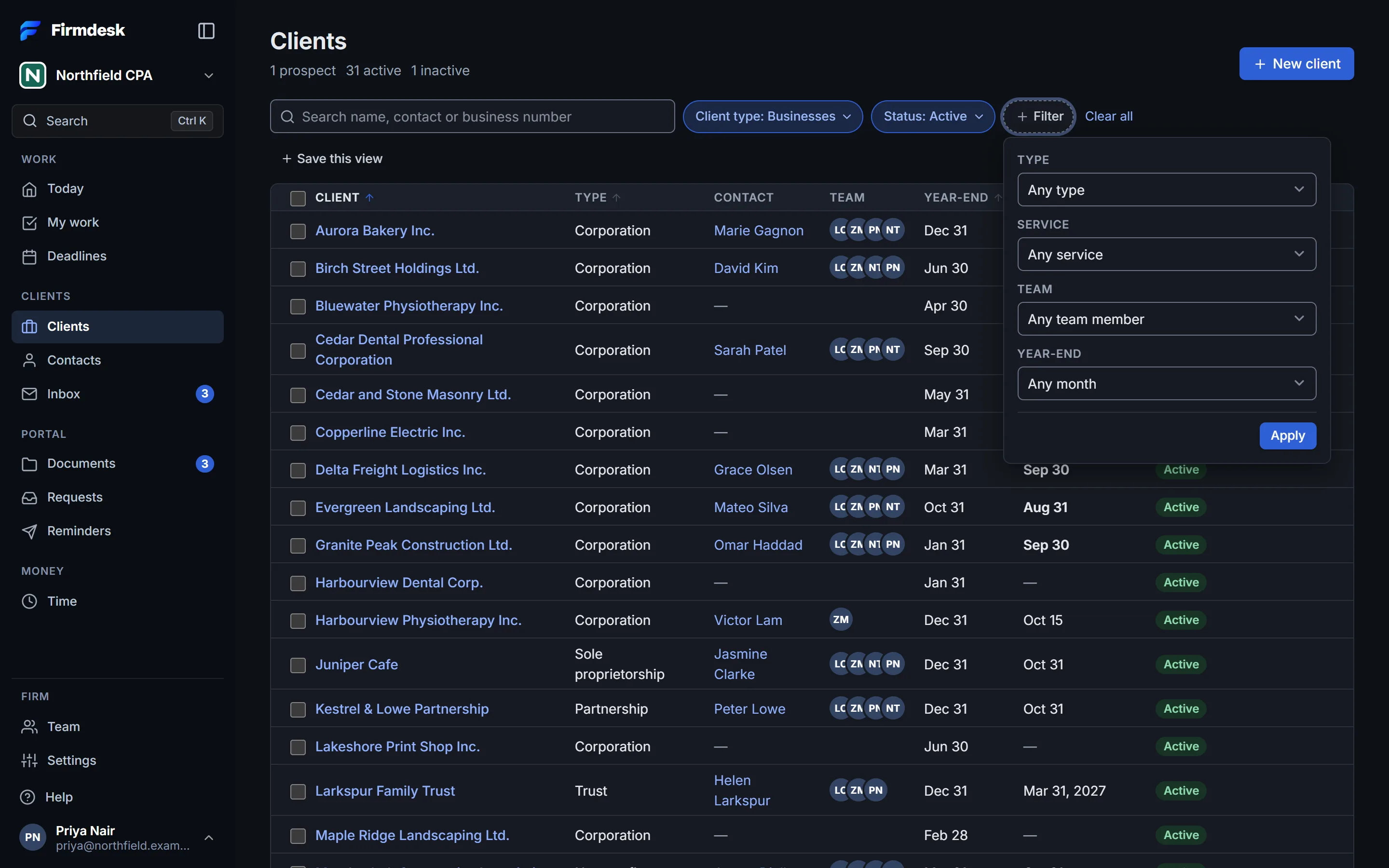
Each filter in use is a chip in the bar: click it to change it where it is, or click Remove. With several in use, Clear all takes them all off.
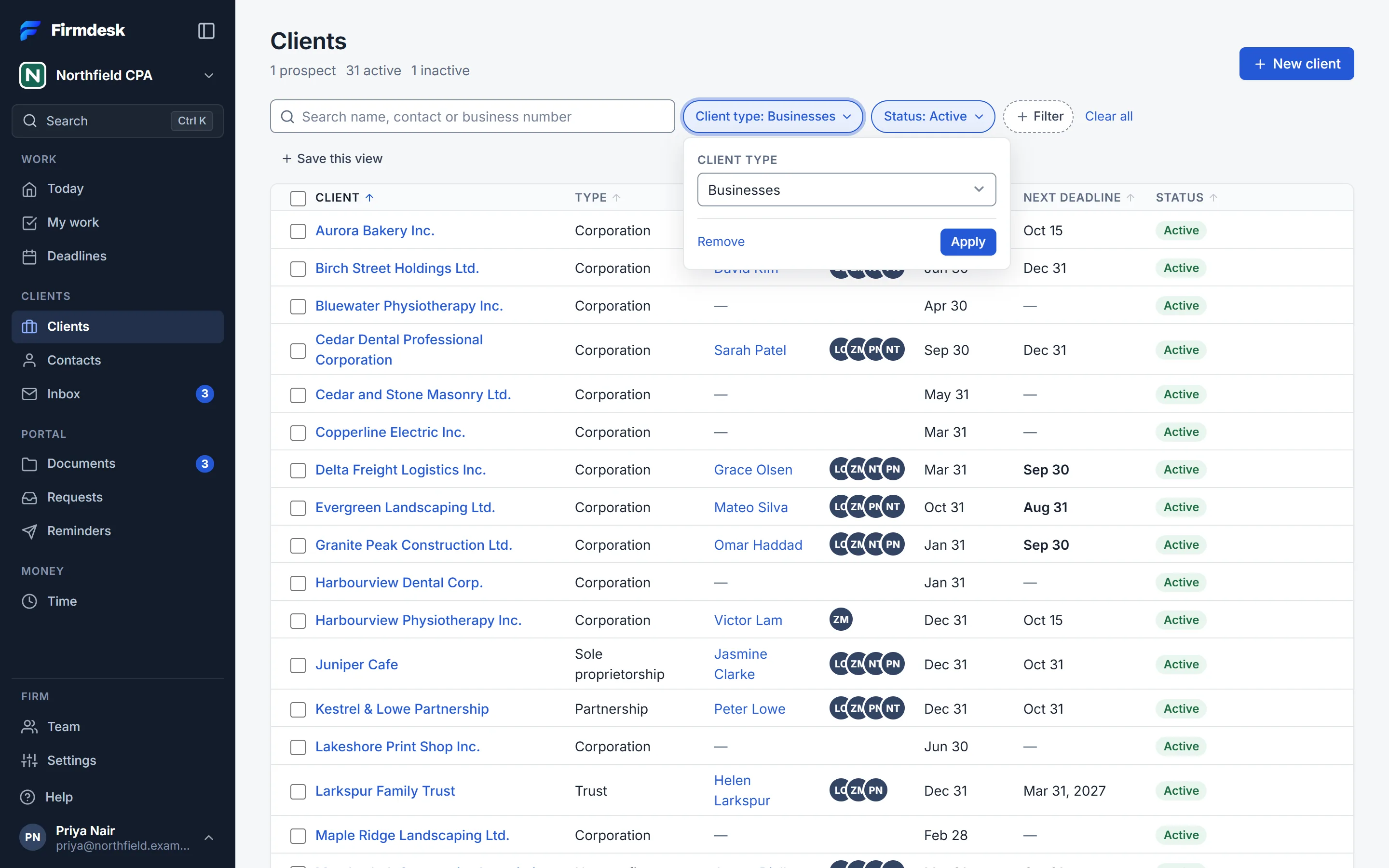
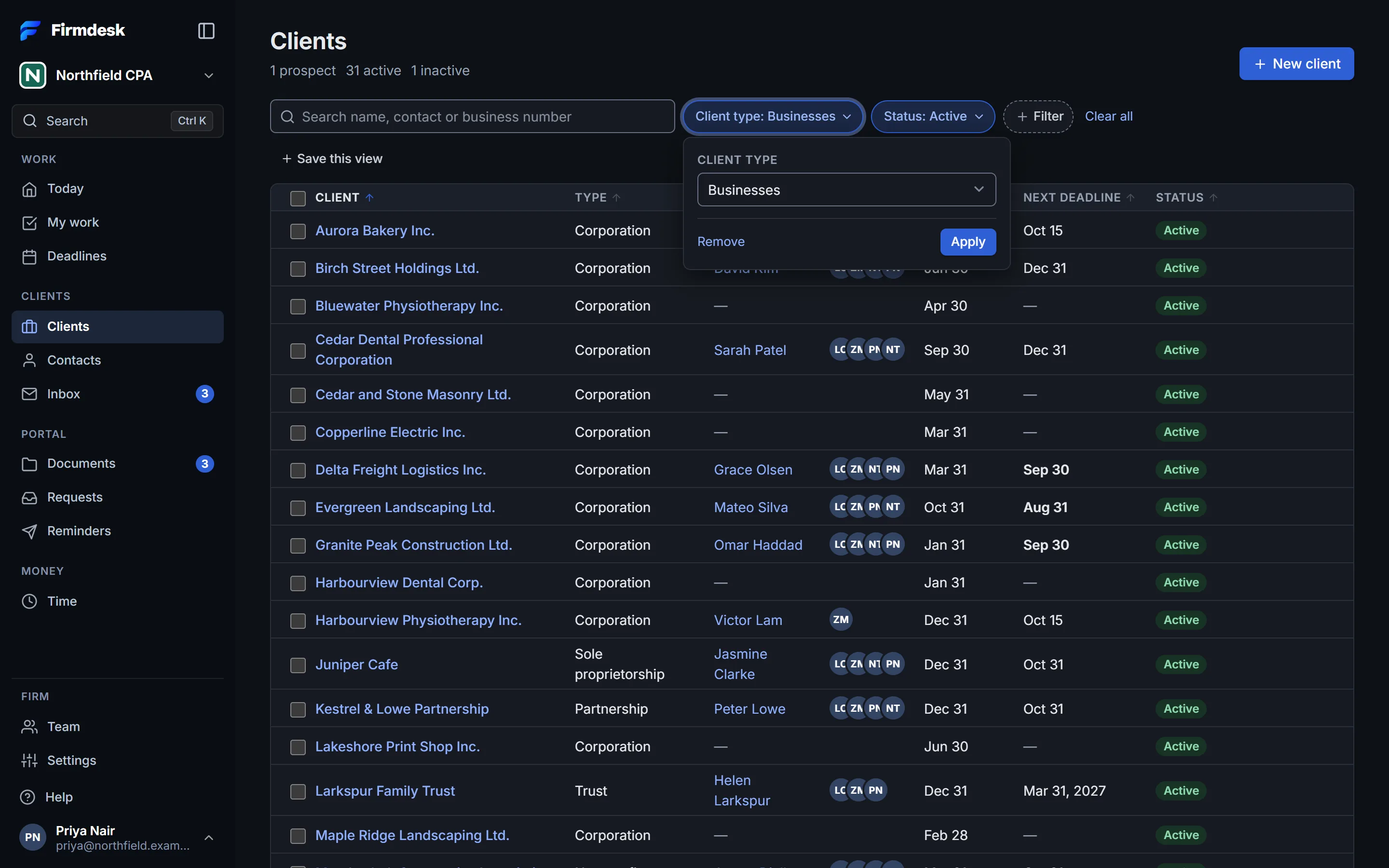
To keep a set of filters, click Save this view, name it and click Save view. It keeps the filters and the order, for you only, under Views.
Work on several clients at once
Tick the clients. In the bar that appears:
- Choose a team member and their role, then click Assign, to put that person on each client's team.
- Choose a status, then click Set status.
- Click Set up services to give them a service, if you're an owner or an admin: see Set up services for many clients.
- Click Send to many clients to send them a request from a template, or Invite clients to invite them to the portal, if you're a manager, a partner, an admin or an owner: see Requests and The client portal, for your firm.
Clear unticks them all.
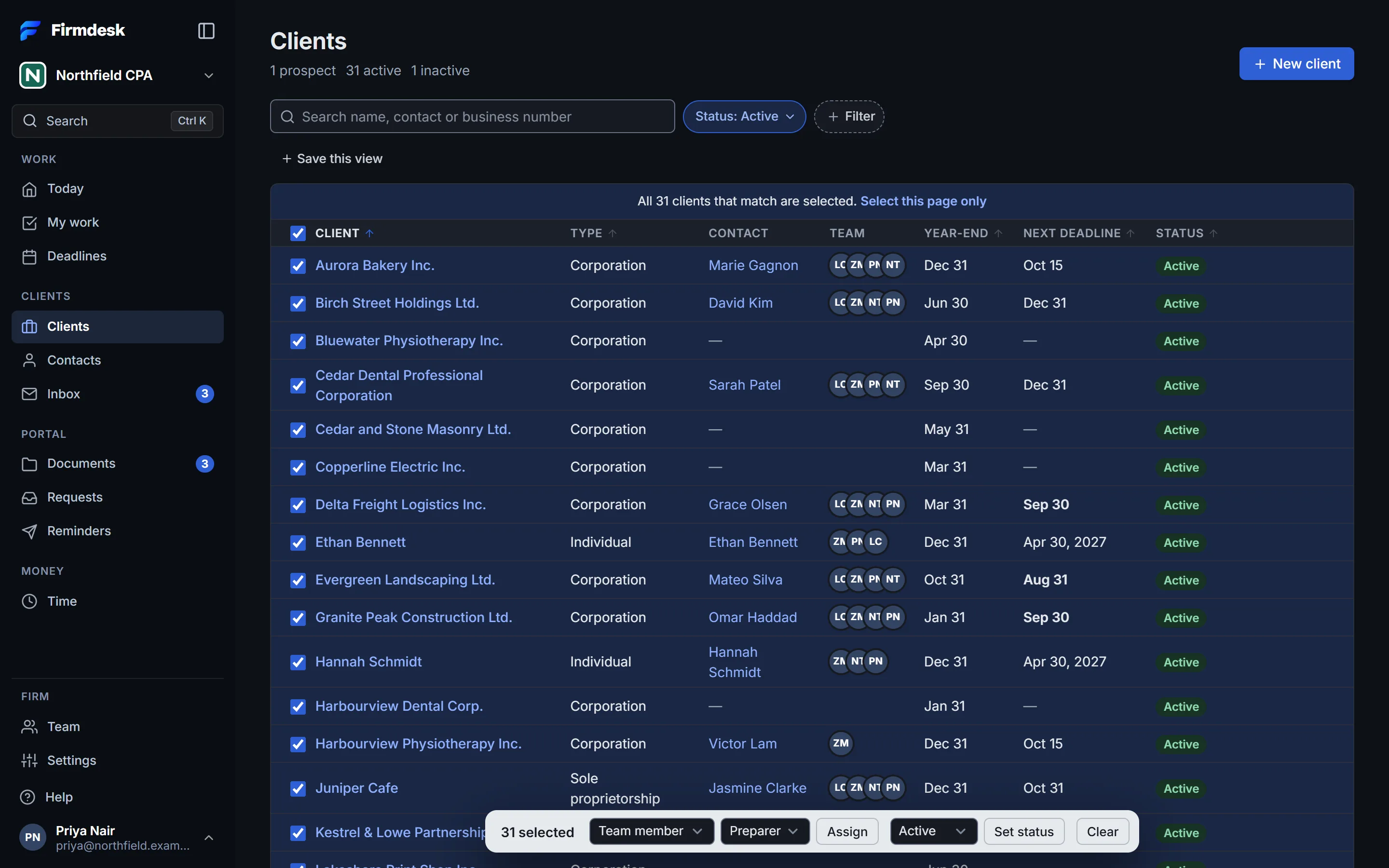
Hold Shift as you tick to tick every row in between. The box at the top of the list ticks every client on the page. When more clients match than the page shows, a line over the list then offers them all, for example Select all 31 that match: what you do next applies to every client that matches your search and filters, on every page. Select this page only goes back. On a phone, click Select first.
Managers, partners, admins and owners also have More actions (⋯) at the top of Clients. There, Set up services, Send to many clients and Invite clients are for every client in the list as you've filtered it, with nothing to tick.
Add a client
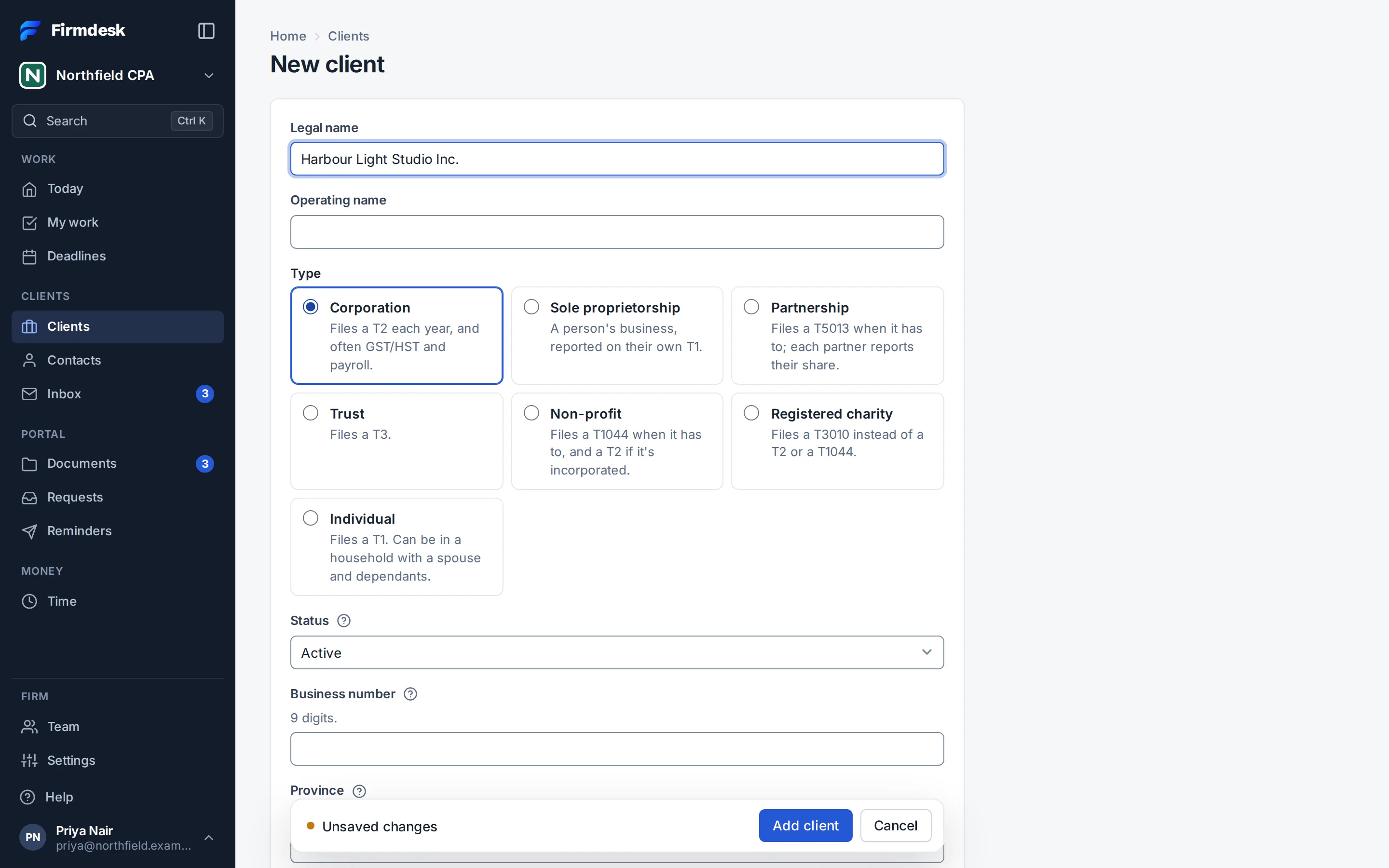
- On Clients, click New client.
- Type the Legal name, and the Operating name if the client goes by another.
- Choose the Type. Each card says what that type of client files: a Corporation files a T2 each year, an Individual a T1. The services you can add to the client follow from it.
- Check what its deadlines are worked out from:
- Year-end month and Year-end day. They start on December 31.
- Province, as two letters, like ON. It decides which holidays move a due date, and the sales tax on the client's invoices. It starts on your firm's province.
- Type the Business number: the CRA's 9 digits, without the program account at the end, like RT0001. Search finds the client by it, and an import matches its rows to your clients by it.
- Leave Status on Active for a client you work for now, and add Notes for the team if you like.
- Click Add client.
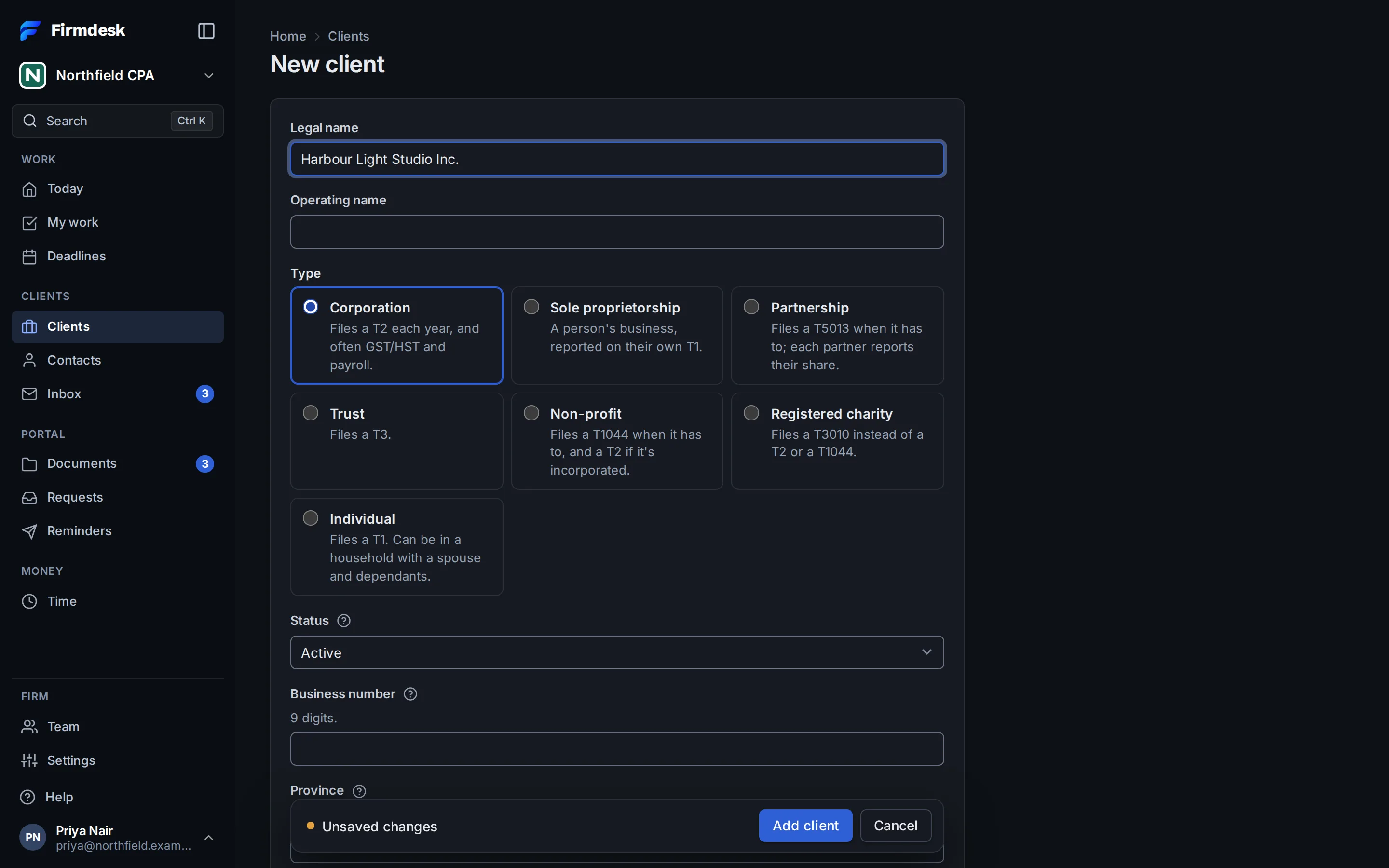
Once you've changed something, the row with Add client and Cancel stays at the bottom of the window and says Unsaved changes, so the button is always in reach. If you leave the page before saving, your browser asks first. Other long forms do the same, such as an invoice, a request or a service.
To change a client later, open it and click More actions (⋯) › Edit client. Change what you need and click Save. When its year-end or its type changes, its deadlines follow: see When things change.
To bring in many clients at once, see Importing your clients.
A client's status
Status is Prospect, Active or Inactive. Only an active client's services make deadlines, and only an active client gets automatic reminders.
When a client stops being active, the deadlines from its services that nobody had started are removed. One with work on it is marked Not needed, and what was done stays. Make the client active again and its deadlines are added again. To change several clients' status, tick them and use Set status.
A client's page
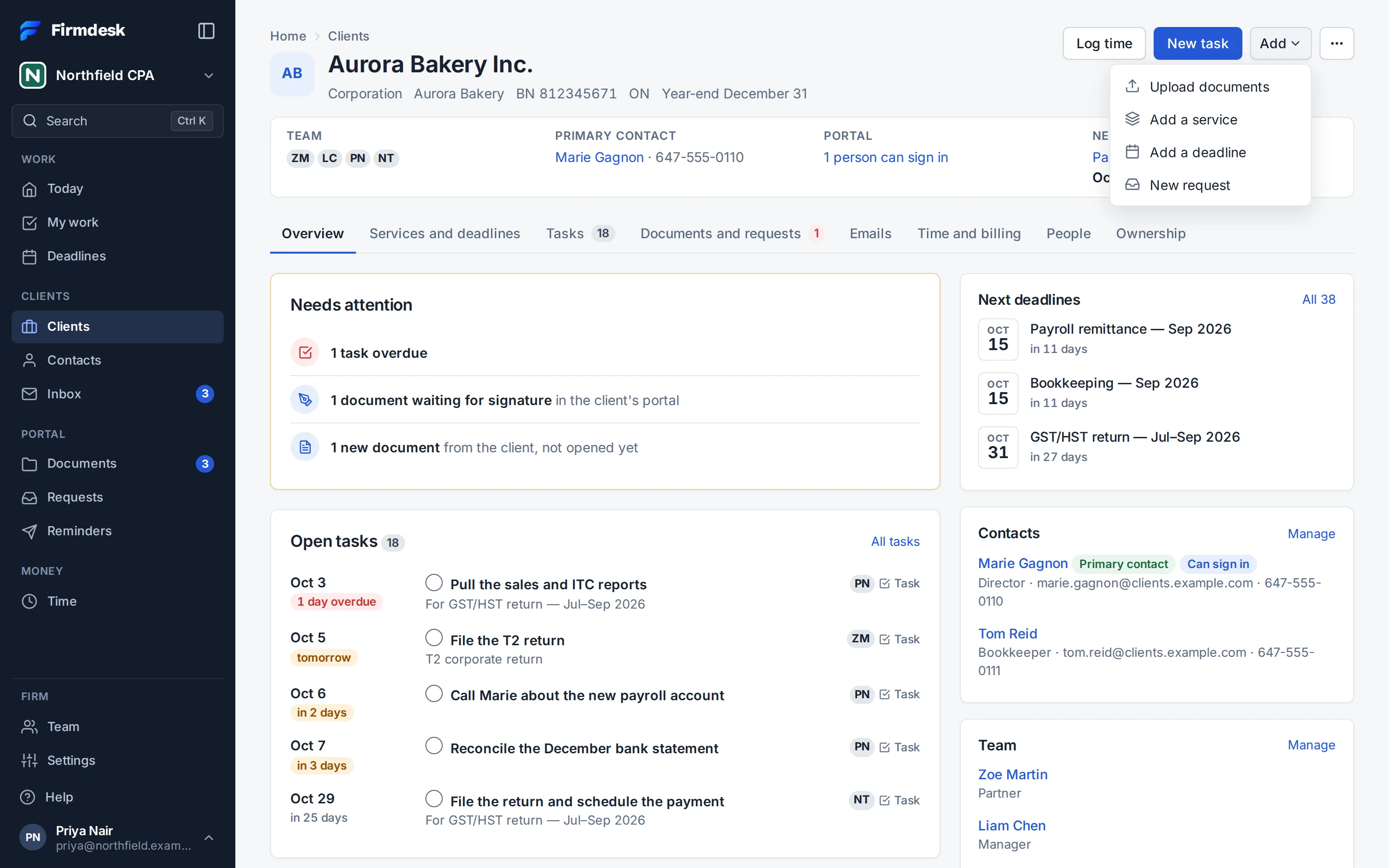
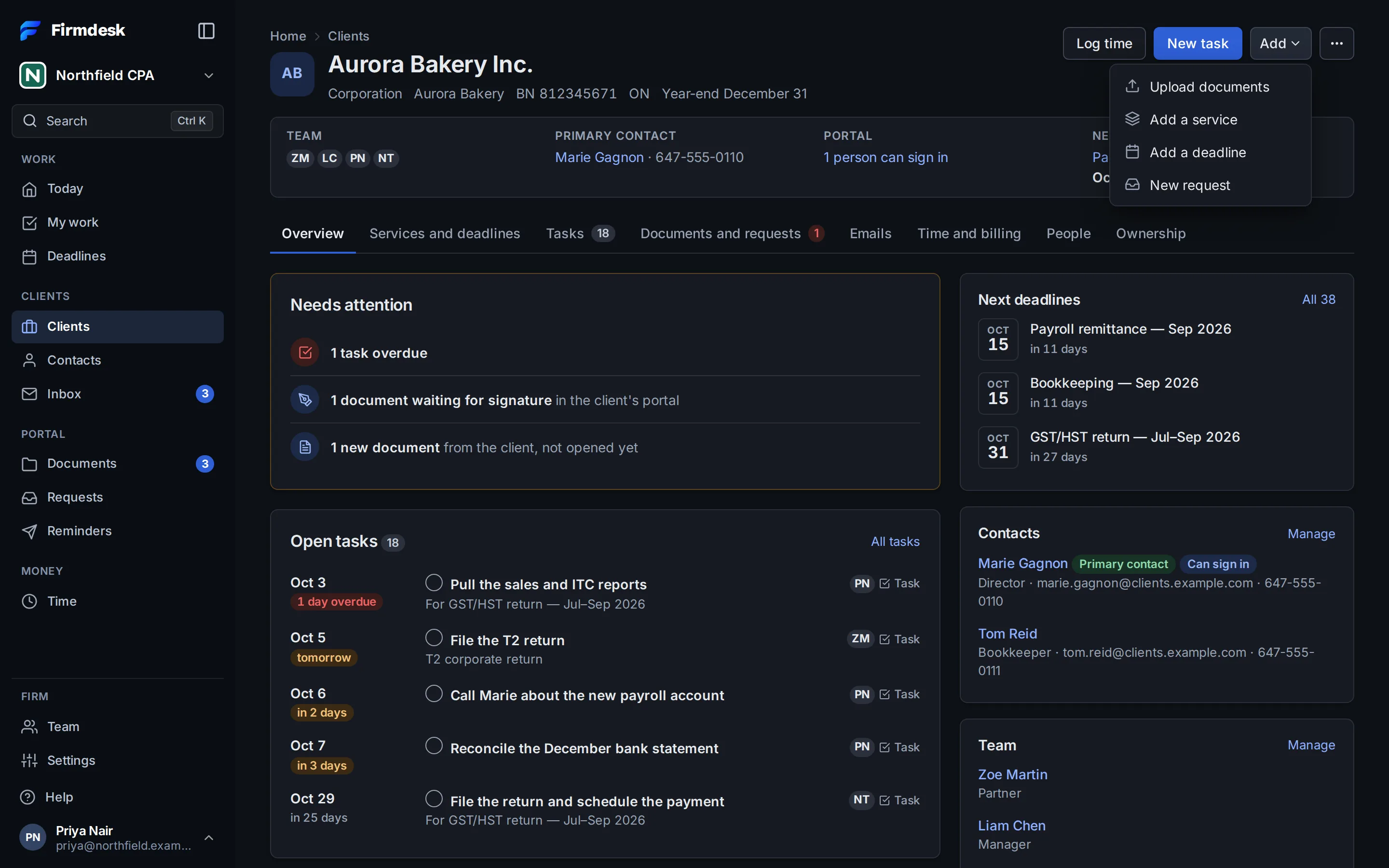
Click a client's name, anywhere in Firmdesk, to open its page. Under the name are its type, operating name, business number, province and year-end. Below, four facts link to where each is managed: its Team, its Primary contact, how many people can sign in to its Portal, and its Next deadline.
At the top right:
- Log time and New task, for this client.
- Add: Upload documents, New invoice (for managers, partners, admins and owners), Add a service, Add a deadline and New request.
- More actions (⋯): Edit client, Print this page for a summary of the client on paper, Open portal page, View as client and, for owners and admins, Delete this client (Delete one client for good).
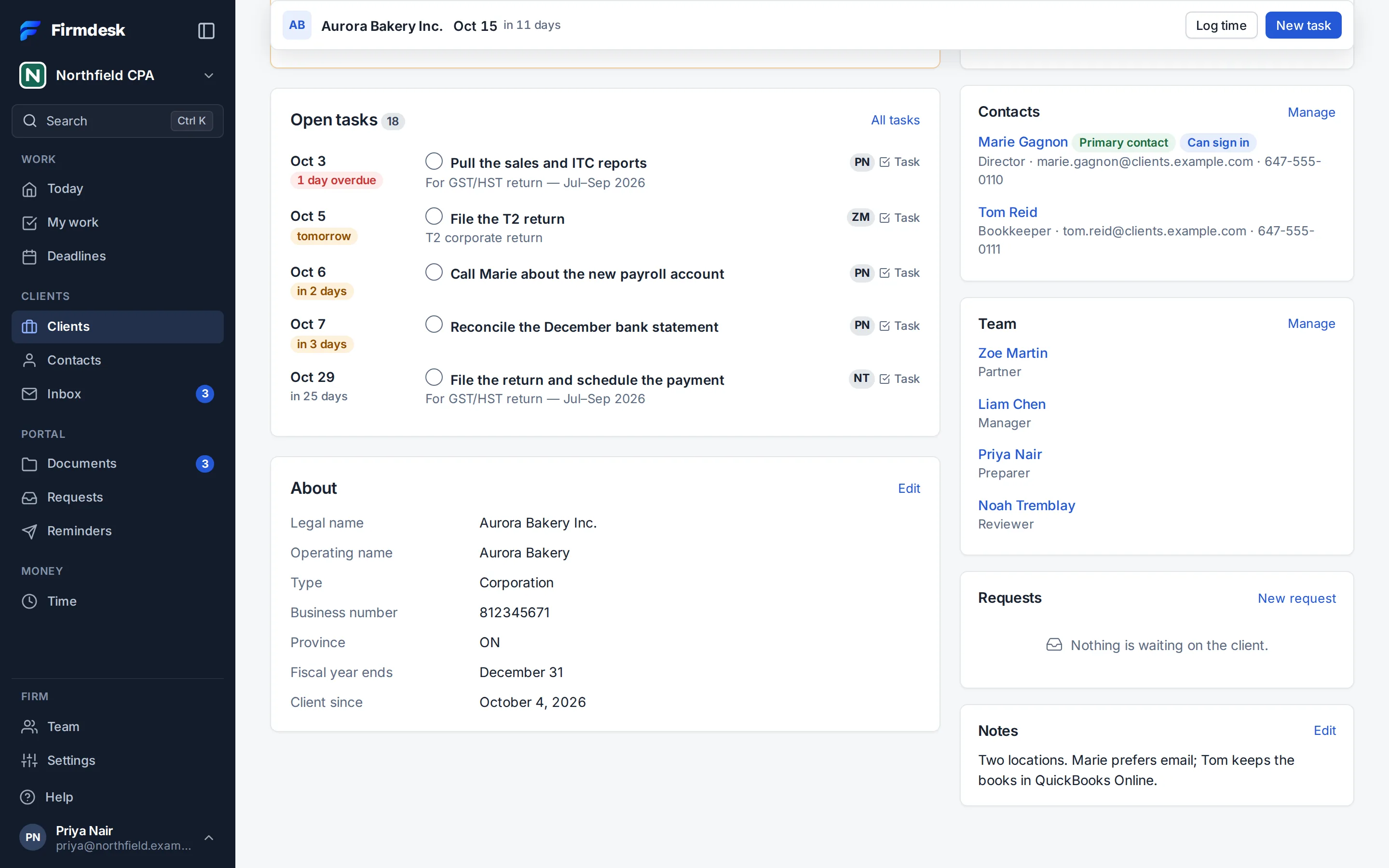
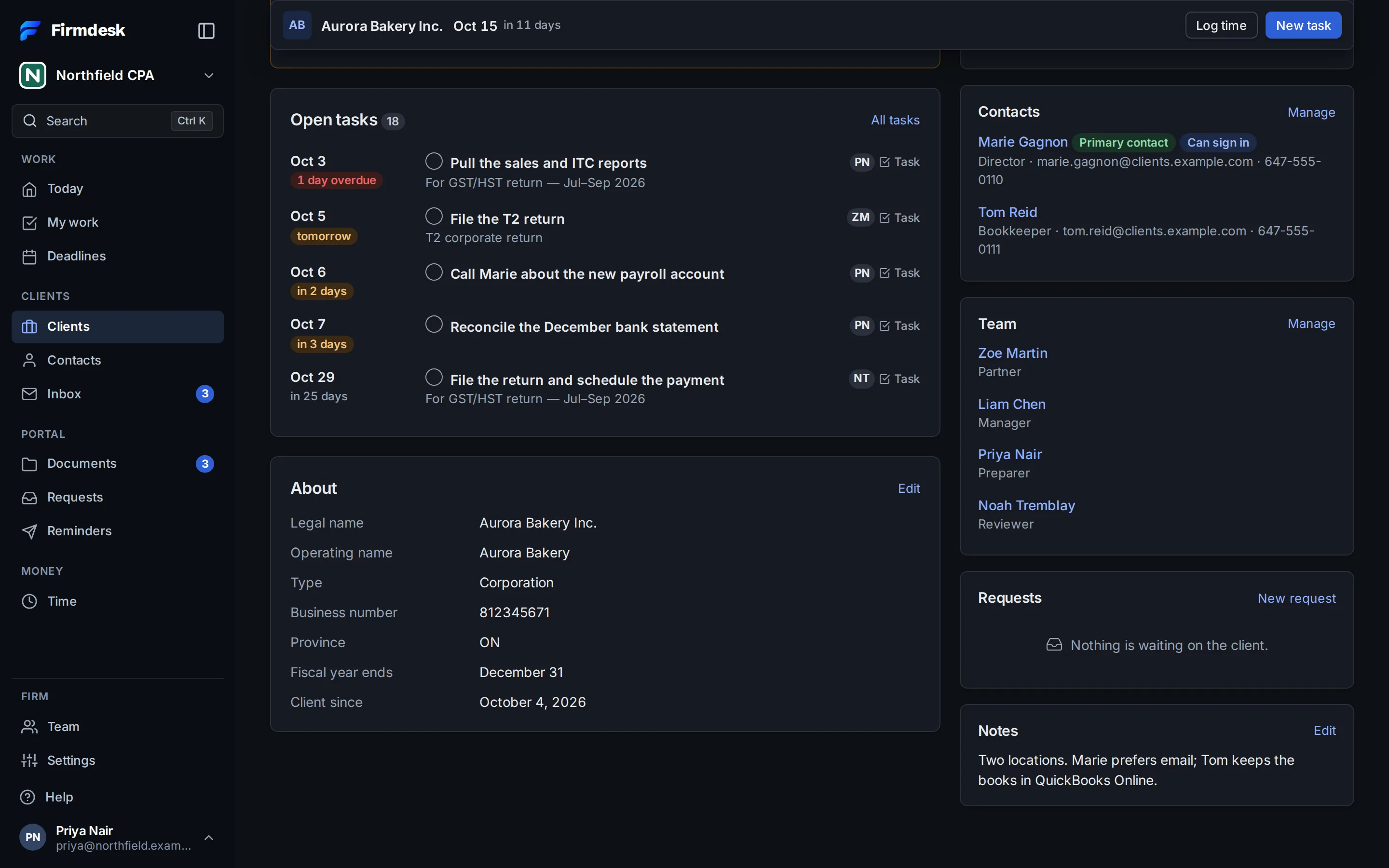
Once the top of the page has scrolled out of sight, a slim bar stays at the top of the window with the client's name, its next deadline (or how many are overdue), Log time and New task.
The tabs
| Tab | What's on it |
|---|---|
| Overview | What needs attention, the open tasks and, at a glance, the next deadlines, the contacts, the team, the requests and your notes |
| Services and deadlines | The client's services and their deadlines (Services, and how deadlines are worked out) and, for managers, partners, admins and owners, its engagement letters |
| Tasks | Its tasks (Tasks and checklists) |
| Documents and requests | Its documents in their folders, and its requests (The client portal, for your firm, Requests) |
| Emails | The client's emails kept in Firmdesk, when your firm uses the Inbox |
| Time and billing | The time logged for the client and, for managers, partners, admins and owners, its invoices and payments (Invoicing and payments) |
| People | Its contacts, its household and its team at your firm |
| Ownership | Its shareholders, the shares it holds and its related parties |
| Activity | What happened around the client, the emails sent about it and what its contacts opened, for managers, partners, admins and owners |
A number on a tab counts the client's overdue deadlines, its open tasks, or what it did in the portal that nobody at your firm has looked at yet. When the tabs don't all fit across the page, the last ones are under More, at the end of the row.
Needs attention
Overview starts with Needs attention when something does. Each line opens what it's about:
- deadlines your firm files and tasks that are overdue;
- documents waiting for the client's signature;
- what the client did that nobody at your firm has looked at: new documents, new answers on your requests, and changes asked for on a document you shared;
- for managers, partners, admins and owners, an engagement letter waiting for signature and invoices that are overdue.
Contacts
A contact is a person you deal with at a client. Contacts, in the sidebar, lists them all, with how many clients each is linked to and whether they can sign in to the portal. Type in Search name, email, phone or client, or click Filter to choose Portal access (Can sign in or Can't sign in), Client (No client finds the contacts linked to none) or Email (No email address).
Add a contact to a client
- Open the client's People tab.
- If the person isn't in Firmdesk yet, click New contact, fill in their First name, Last name, Email and what else you have, and click Add contact. Then come back to the client's People tab.
- Under Add a contact, choose the Contact.
- Choose their Role: Director, Officer, Signing authority, Bookkeeper or Other. Tick Primary contact if they're the person you write to about this client. Someone with no particular role, such as an individual client themselves, needs that tick.
- Click Add contact.
For someone with two roles, add them again with the other role: they stay on one row. In the list, Make primary makes that person the primary contact, and Remove takes them off this client. They stay in Contacts, and lose their access to this client's portal.
An import adds each row's person as a contact too, and Contacts › Import contacts brings in contacts alone: see Importing your clients.
The primary contact
Each client has one primary contact: the person you write to about it. Their name shows at the top of the client's page and in the Clients list. They're the one ticked to start with when you invite many clients to the portal, and among those ticked when you turn on a client's reminders.
Who can sign in to the portal
Being a contact doesn't open the portal. Give each person access on the client's portal page: see Let a client's contacts sign in. They need an email address. Can sign in then shows beside their name, on the client's page and in Contacts.
One person at several clients
Keep one contact per person, and add them to each client they belong to, with their role there. Their page, opened by clicking their name, lists their Clients, the portals they can open under Client portal, and the shares they hold. In the portal, they sign in once and switch between the clients they were given access to.
On a contact's page, Edit contact changes their details and records your check of who they are, for what they sign (Know who signs). Delete contact deletes them for good once you confirm; their clients stay.
The team on a client
Put the people who work on a client on its team, each in a role: Partner, Manager, Preparer or Reviewer.
- Open the client's People tab.
- Under Assign a team member, choose the Team member and their Role.
- Click Assign.
Remove takes someone off a role. One person can hold several roles, and several people the same one. To put one person on many clients, tick the clients under Clients and use Assign in the bar.
What the team decides:
- A task for a role, such as a checklist step for the preparer, goes to whoever holds that role on the client (Tasks and checklists).
- My clients, under Team in the filters of Clients, and Me, under Team member on Deadlines, keep the clients whose team you're on. Today shows their deadlines to people who don't see the whole firm.
- Team members on a client are emailed what it does in the portal (The emails your team gets).
- With Their team at the firm on in the portal settings, the client sees its team in its portal.
Households
A household keeps a family together: a main client, with their spouse and dependants under them. Only clients of the Individual type can be in one, and a main client can't be in another household.
- On the main client's People tab, under Household, click Add spouse or Add dependant. New client opens with the household filled in.
- For someone who is a client already, edit them: set Household of to the main client, and Role in the household to Spouse or common-law partner, Dependant or Other family member.
Household, on each member's People tab and Overview, lists everyone with where their latest T1 stands and how many items you're still waiting on from them.
Invoices for the household's work go to the main client: a spouse or a dependant has no New invoice, and their time is invoiced with the main client's (Invoicing and payments). An import can suggest households: see Households.
Ownership: the share register and related parties
A client's Ownership tab records who owns it, what it owns and who it's related to. It's your firm's record: nothing on it changes a deadline.
The share register
For a corporation, Shareholders shows who holds its shares today, with each holder's part of the class and of the votes. To record them, click Open share register:
- Under Add a share class, type its Name, such as Class A common, untick Voting for a non-voting class, and click Add share class.
- Under Record an entry, choose the Date, the Type, the Share class and the number of Shares:
- Issuance: choose who receives the shares under To.
- Transfer: choose From and To.
- Redemption / cancellation: choose whose shares they are under From.
- Add the Consideration ($), the Certificate # and Notes if you like, and click Record entry.
A holder is a contact or another client. Holdings are worked out from the entries, so they change only with a new entry, and Firmdesk refuses a transfer or a redemption of more shares than the holder has. Set As of to see the holdings on an earlier date. Delete, on an entry, is for one made by mistake.
Shareholdings, on the same tab and on a contact's page, lists the shares that client or person holds in your other clients.
Related parties
Under Related parties, on a client's Ownership tab or on a contact's page:
- Under Add a related party, choose what This client is (This contact is, on a contact's page): Controls, Associated with, Related to, a family relationship such as Spouse of or Parent of, or another.
- Choose the Related party, a contact or a client, and the date under Since if you know it.
- Click Add related party.
The relationship shows on both sides: a client that Controls another is Controlled by it there. Family relationships are between two contacts, Associated with between two clients, and only a client can be controlled. When a relationship ends, click End: it's kept under the past relationships. Delete is for one added by mistake.
Pick a client in a form
Where a form asks for the Client, such as New task, Log time or New invoice, click the field and type part of the name: any part of it, with or without its accents. Before you type, the clients you picked lately in this browser come first, under Recent. Click one, or use the arrow keys and press Enter.
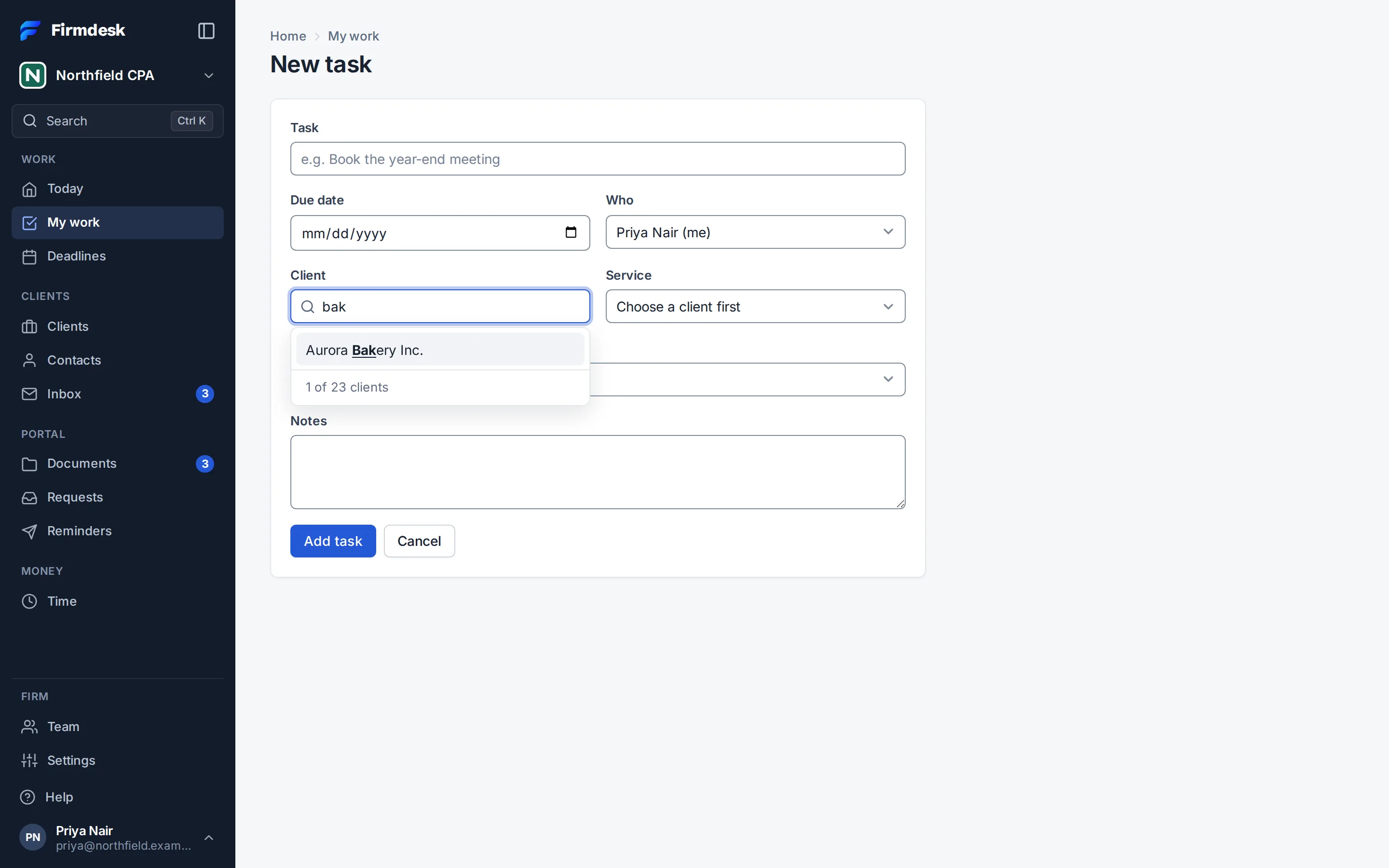
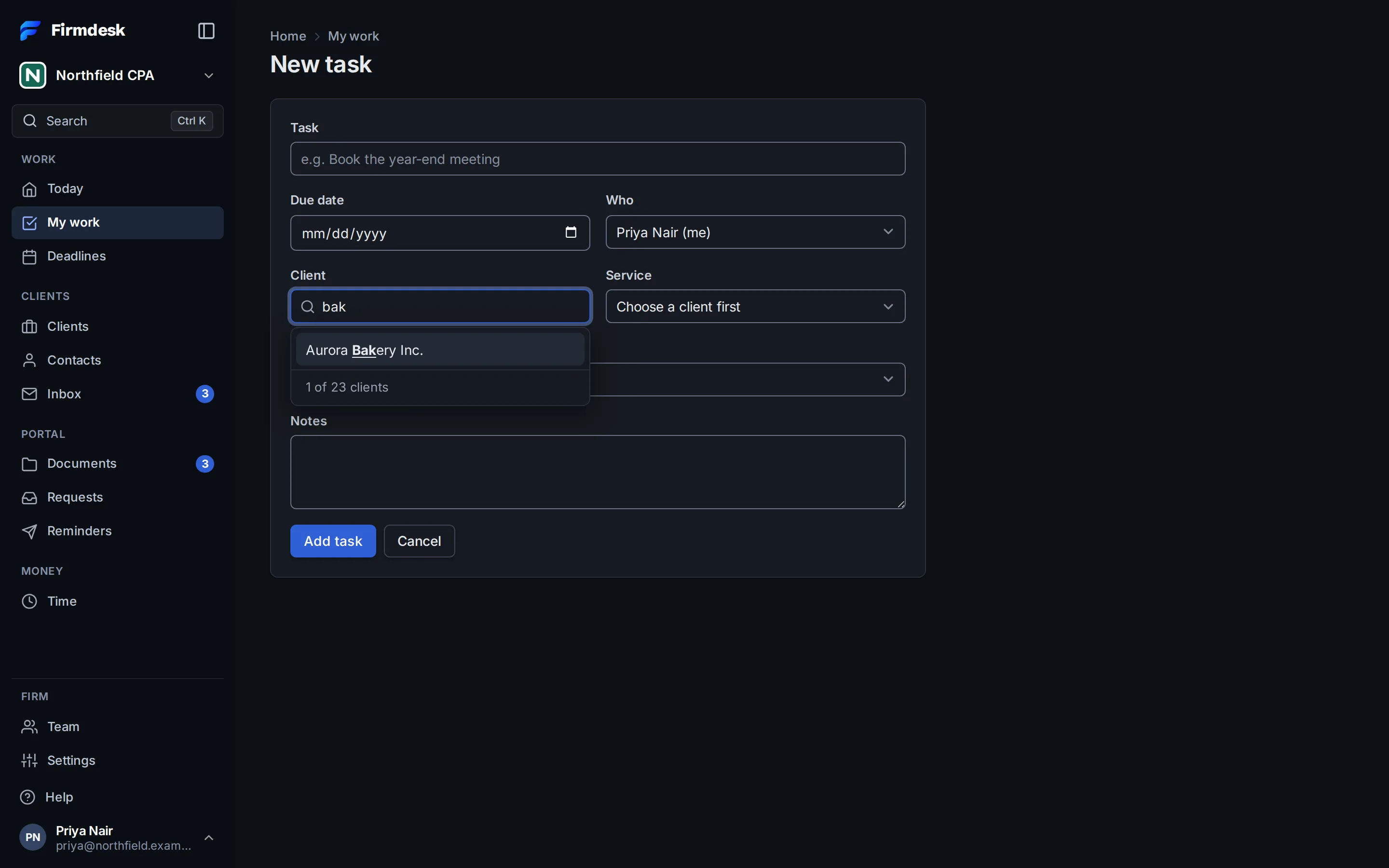
With fewer than 8 clients to choose from, the field is a plain list.
Good to know
- Everyone on the team can open, add and change clients and contacts, link contacts, assign the team and keep the share register.
- Importing, setting up services for many clients at once and deleting a client are for owners and admins. Invoices, engagement letters, a client's Activity tab, and a request or portal invites for many clients at once are for managers, partners, admins and owners.
- Two clients can't have the same business number.
- To stop working for a client and keep its history, make it inactive. Deleting a client is for good: see Exporting your data.
- A client or a contact named in a client's share register can't be deleted until those entries are deleted there.
- You can keep up to 20 views of Clients, and 20 of Contacts.