Pipelines: your own stages
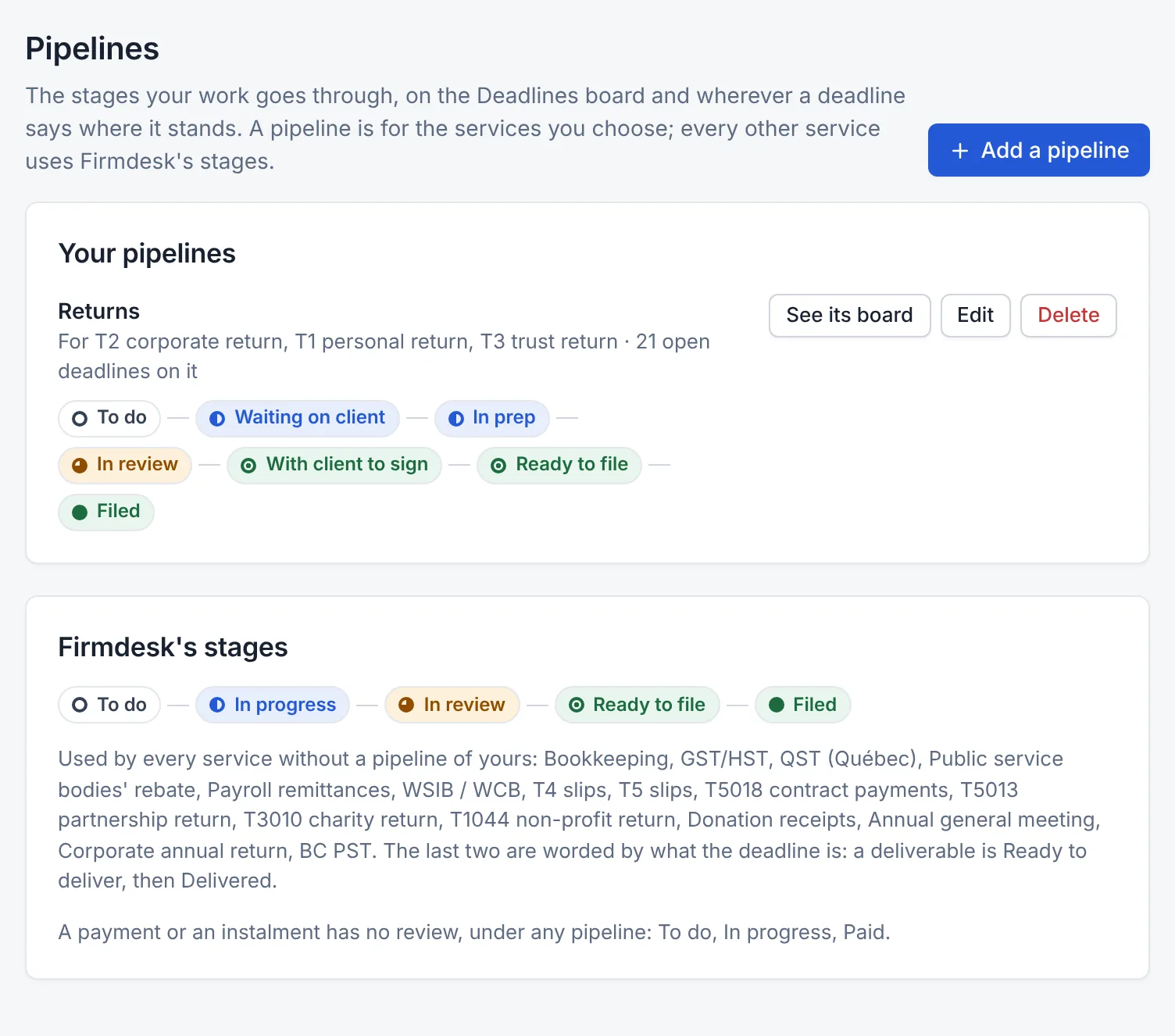
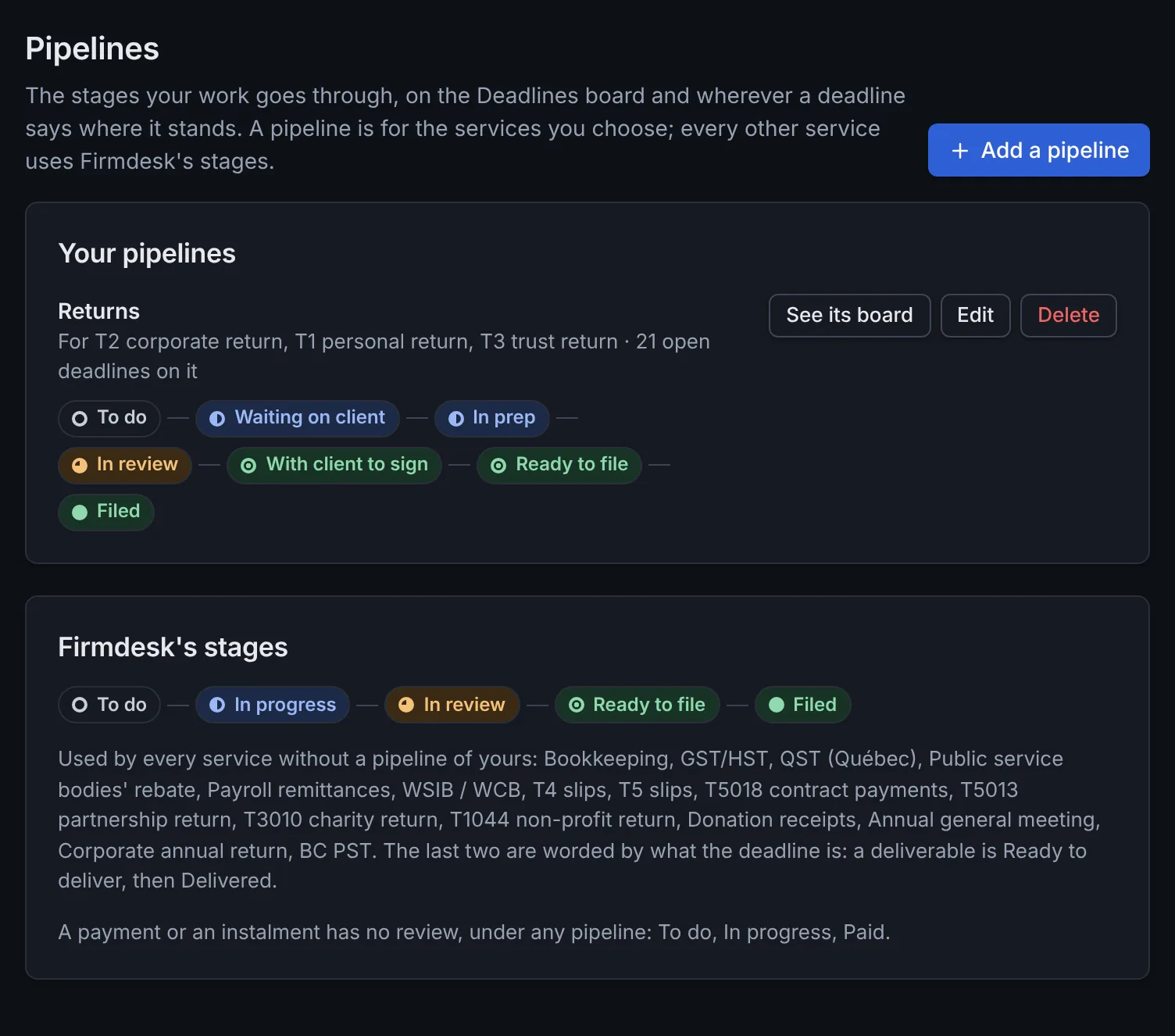
A pipeline is the list of stages your work goes through, in the words your firm uses: Waiting on client, In prep, With client to sign. You choose the services it's for. Their returns and deliverables then move through your stages on the Deadlines board and wherever a deadline says where it stands.
Without a pipeline, a service uses Firmdesk's five stages: To do, In progress, In review, Ready to file and Filed. Many firms never need more.
Owners and admins set pipelines up in Settings › Pipelines. The whole team works with them.
Add a pipeline
- Go to Settings › Pipelines and click Add a pipeline.
- Give it a Name: how your firm knows it, such as “Returns”.
- Under For, tick the services it's for. The services your clients have come first; click the line under them for the others. A service can be in one pipeline only: one that's taken says which.
- Under Stages, name each stage and choose what it Counts as (see below). Click Add a stage for another, the arrows to move one up or down, and Remove to take one out.
- Check On the board: it shows your stages in order, as the board will.
- Click Save pipeline.
Nothing changes until you save. Then each open deadline of those services stands in the first of your stages that counts as where it stood: one that was In review is in your review stage.
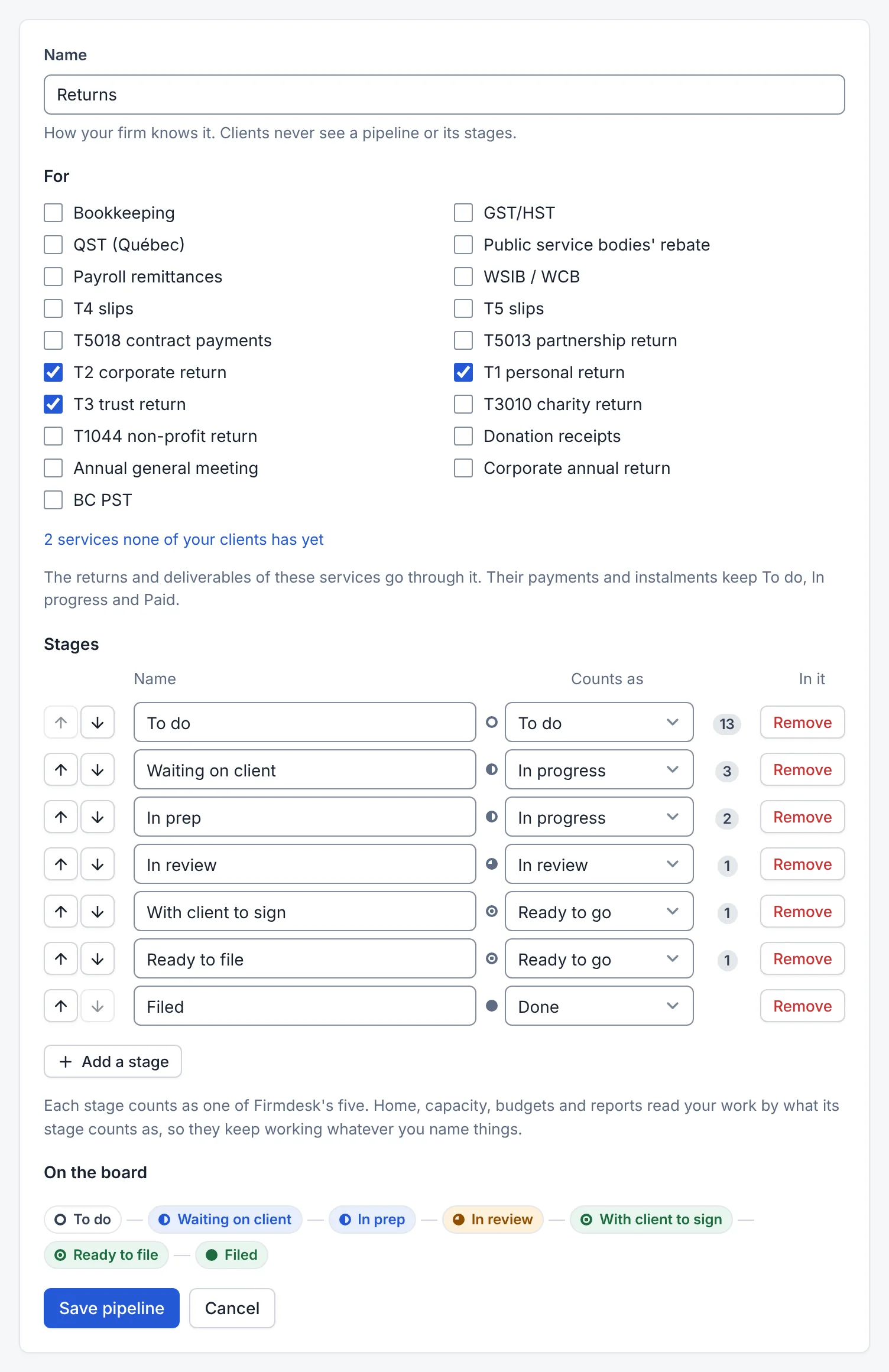
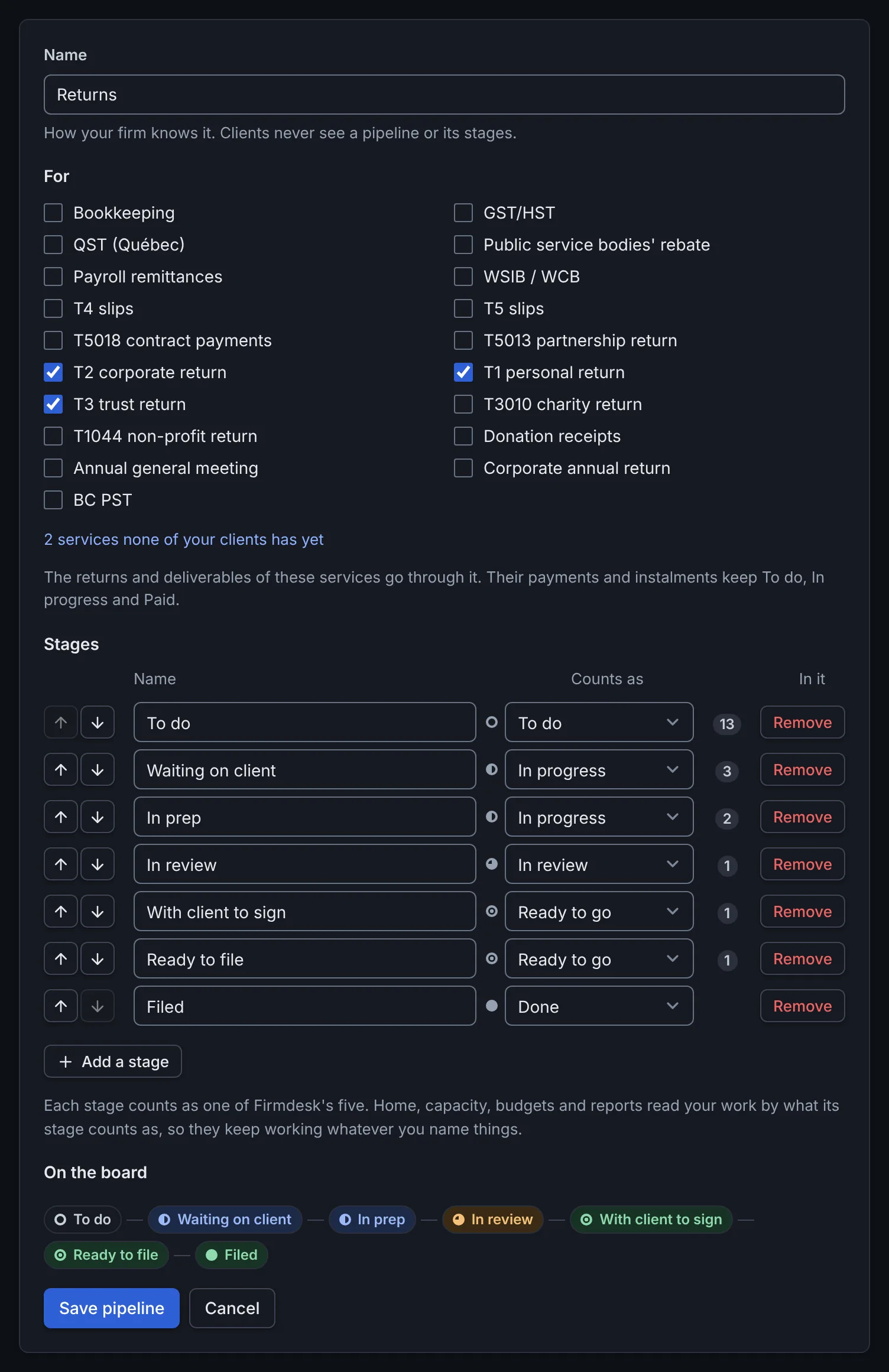
What a stage counts as
Each stage counts as one of Firmdesk's five. Home, capacity, budgets and reports read your work by what its stage counts as, so they keep working whatever you name things.
| Counts as | For a stage where |
|---|---|
| To do | Nobody has started. Your first stage counts as this. |
| In progress | The work is under way, or waits on the client. |
| In review | It's prepared and waits for its reviewer. |
| Ready to go | It's reviewed, and waits for a signature, a payment or someone to send it. |
| Done | It has gone out. Your last stage counts as this. |
Several stages can count as the same one: Waiting on client and In prep can both count as In progress. Stages go forward through the five, so a stage that counts as In review can't come after one that counts as Ready to go. A pipeline has from 2 to 10 stages. The form says what to fix before it saves.
After it's filed
A pipeline can go on after the stage work is finished in: Filed, then Assessed, then Invoiced. Add a stage, move it below Filed, and it counts as Done too. A return is finished in the first of them: that's where Mark filed puts it, and from then on it's done for Home, capacity, budgets and reports. The stages after are for what follows. The board keeps a return in them until it reaches the last one.
See your work by stage
- In the sidebar, click Deadlines.
- Beside Week, Month and Client, click Stage.
- Click Service and choose one. Its stages are the columns: your pipeline's, or Firmdesk's.
Each card is a return or a deliverable. To move one, drag it to another stage, or click the arrow on the card and choose the stage. The message that follows has Undo. The last stage asks first when the deadline still has open tasks.
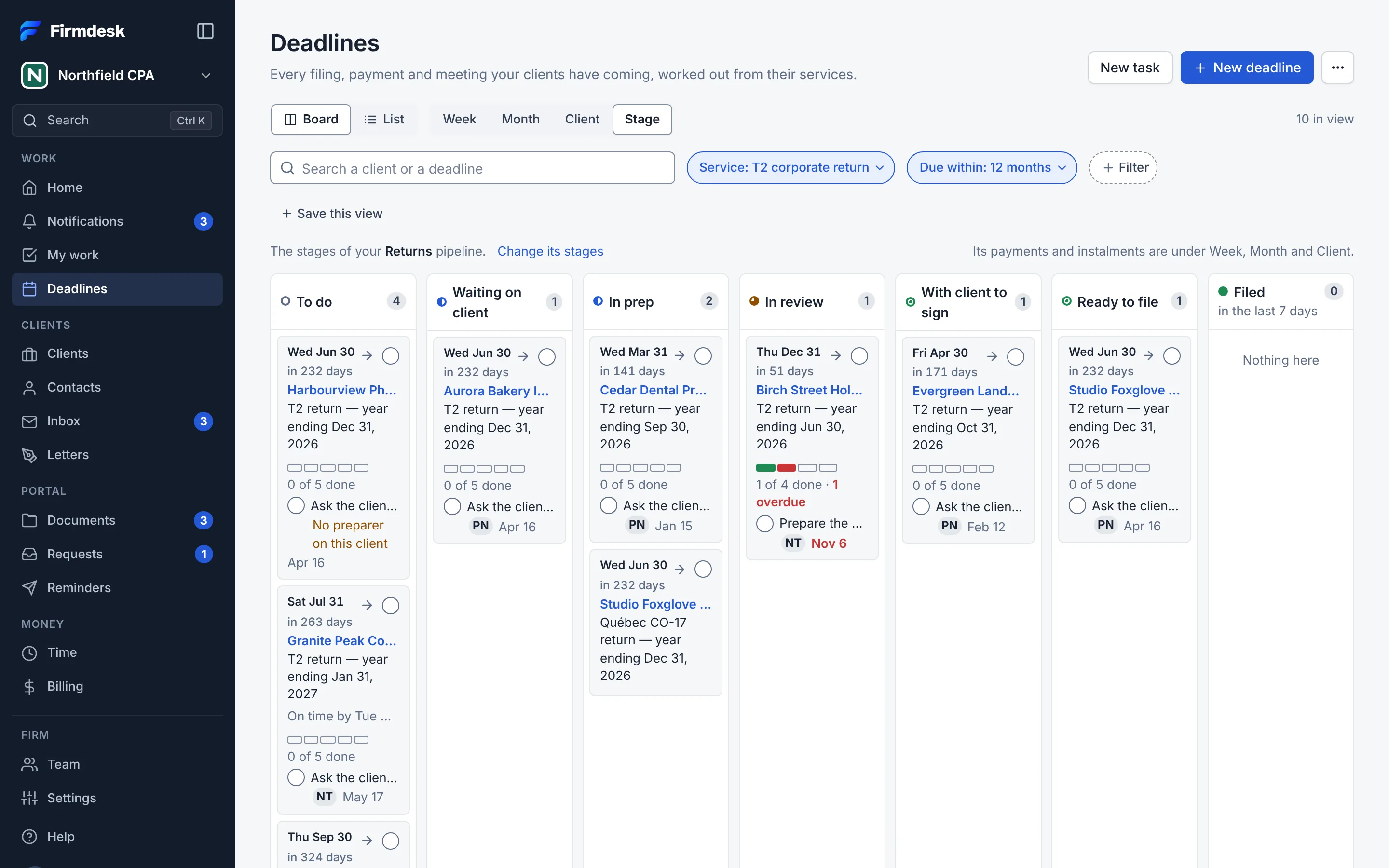
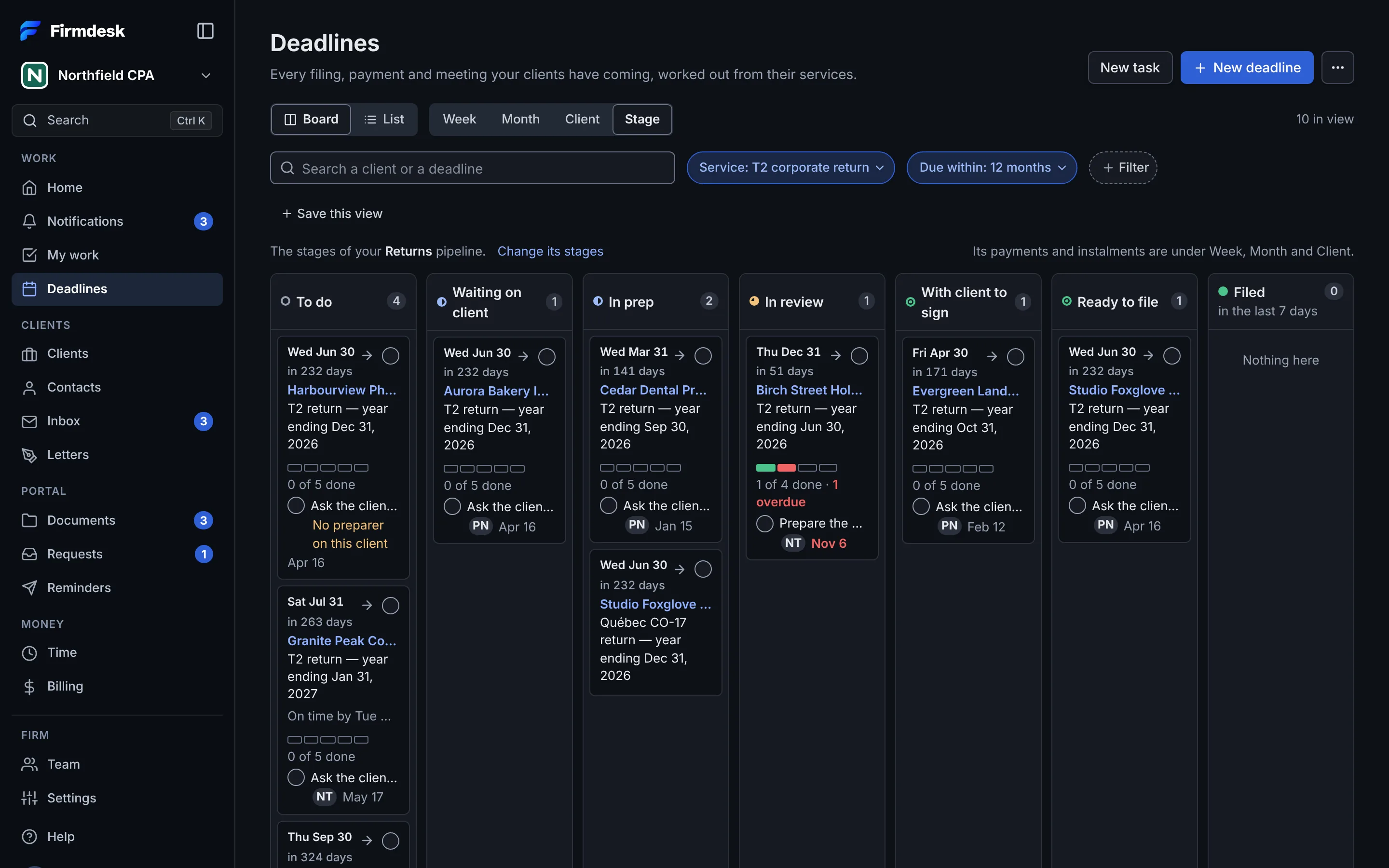
The board shows what's open and due within the time under Due within: 12 months for a service with a pipeline, 3 months for one without. Work that's under way shows whatever its date. The last stage shows what got there in the last 7 days. A stage before it that counts as Done (Filed, when Assessed follows) keeps what was finished in the last year and hasn't moved on.
From the day after a card is moved, it says how long it has been in its stage: “In this stage for 12 days”.
With Any service, the columns are Firmdesk's five, across all your work, and it looks one month ahead. A card of one of your pipelines says its own stage, and lands in the first of its stages that counts as the column you drop it on.
Change a pipeline
Go to Settings › Pipelines and click Edit beside it, or click Change its stages above its board.
- Rename a stage, or move it: its deadlines stay in it.
- Remove a stage: its open deadlines go to the next stage that counts as the same, or else to the stage before. The form says how many, and where they go, before you remove it.
- Change what a stage counts as: its open deadlines count as that from then on.
In it, beside each stage, is how many open deadlines stand there.
Delete a pipeline
Click Delete beside it and confirm. Its deadlines go back to Firmdesk's stages, each where it stands: none is lost, and none changes status.
Have automations follow your stages
An automation can wait for a stage, and move a deadline to one:
- When a deadline moves to a stage: choose the stage, then what happens. For example, when a return moves to In review, email the reviewer.
- Move the deadline to a stage: for example, when a request is complete, move the return to In prep.
- With Wait (days), it acts only if the deadline is still in that stage on the day: seven days in Waiting on client, then a task to call them.
When an automation moves a deadline, the automations for its new stage act next. An automation only moves a deadline forward, and never to a stage that counts as Done: that stays with a person. It can wait for a stage after the one work is finished in: when a return moves to Assessed, create a task to compare the notice of assessment. See Automations.
If you remove a stage an automation names, that automation stops acting. Firmdesk tells you which when you save, and Settings › Automations marks it Its stage was removed until you choose another.
Good to know
- Clients never see a pipeline or its stages. In the client portal, a finished deadline still reads Filed, Delivered or Paid.
- A payment or an instalment has no review, under any pipeline: To do, In progress, Paid. Find them under Week, Month and Client.
- Only owners and admins see Settings › Pipelines. Everyone on the team sees the stages and moves deadlines.
- A custom service is chosen by its name: every client's service with that name is in the pipeline.
- Each change to a pipeline is in the Activity log.